
By using additional blocks (components) on the results and thank-you pages, you can make the quiz finale more useful for both the business and the user. Currently, you can add the following blocks:
- Text. To provide a detailed transcript of the result or personalized advice.
- Button. To direct the user further down the sales funnel.
- Gallery. To visualize a selection of products or show examples of our work.
- Social media. To convert a cold lead into a loyal subscriber.
- Share. To create a viral effect and get free traffic.
By default, you can add a title, text, images, and customize the price and discount for a result. But sometimes that's not enough.
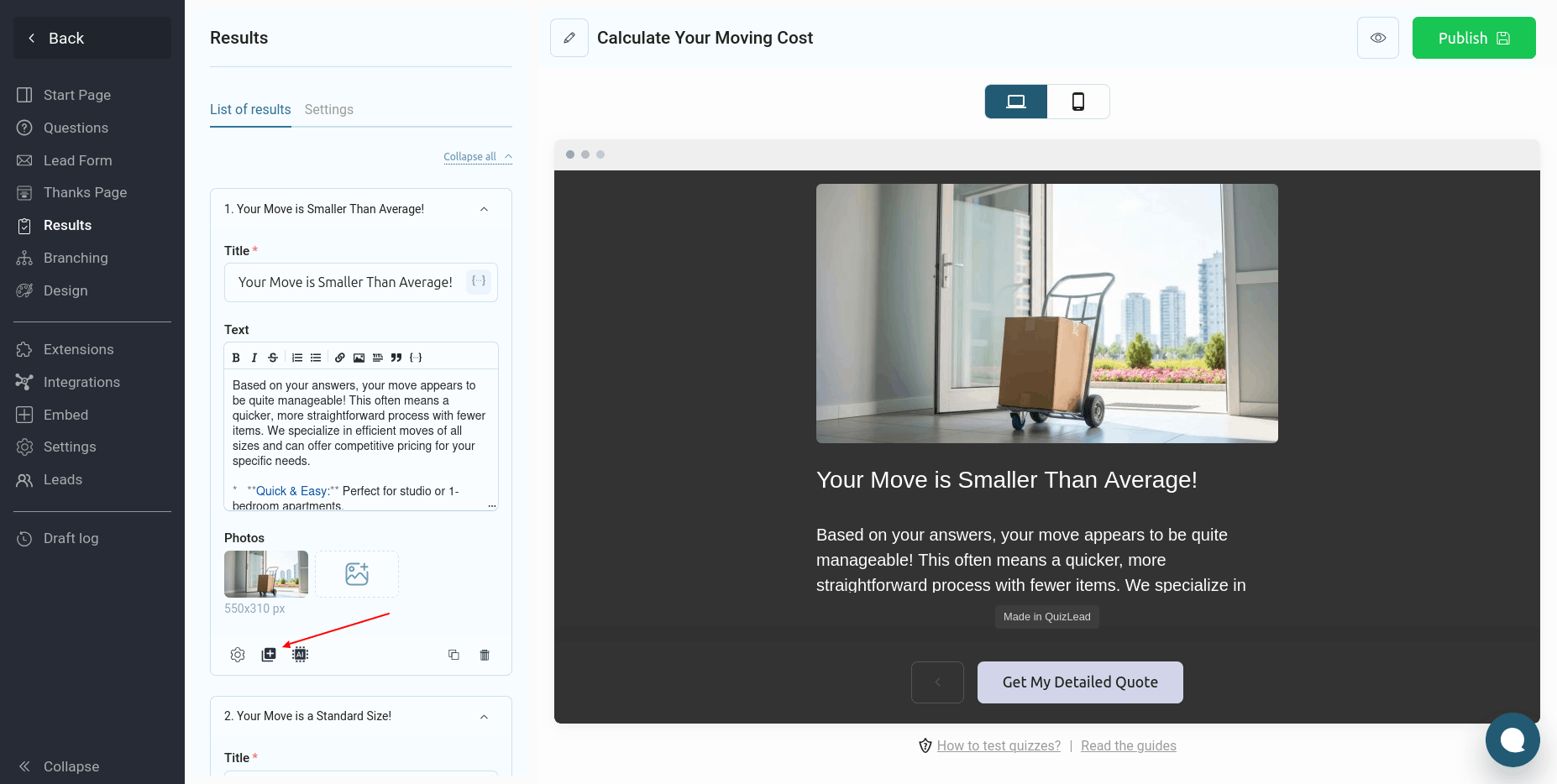
To add an additional block to the results page, go to the "Results" section, find the desired result and click on the icon, as shown in the image below:
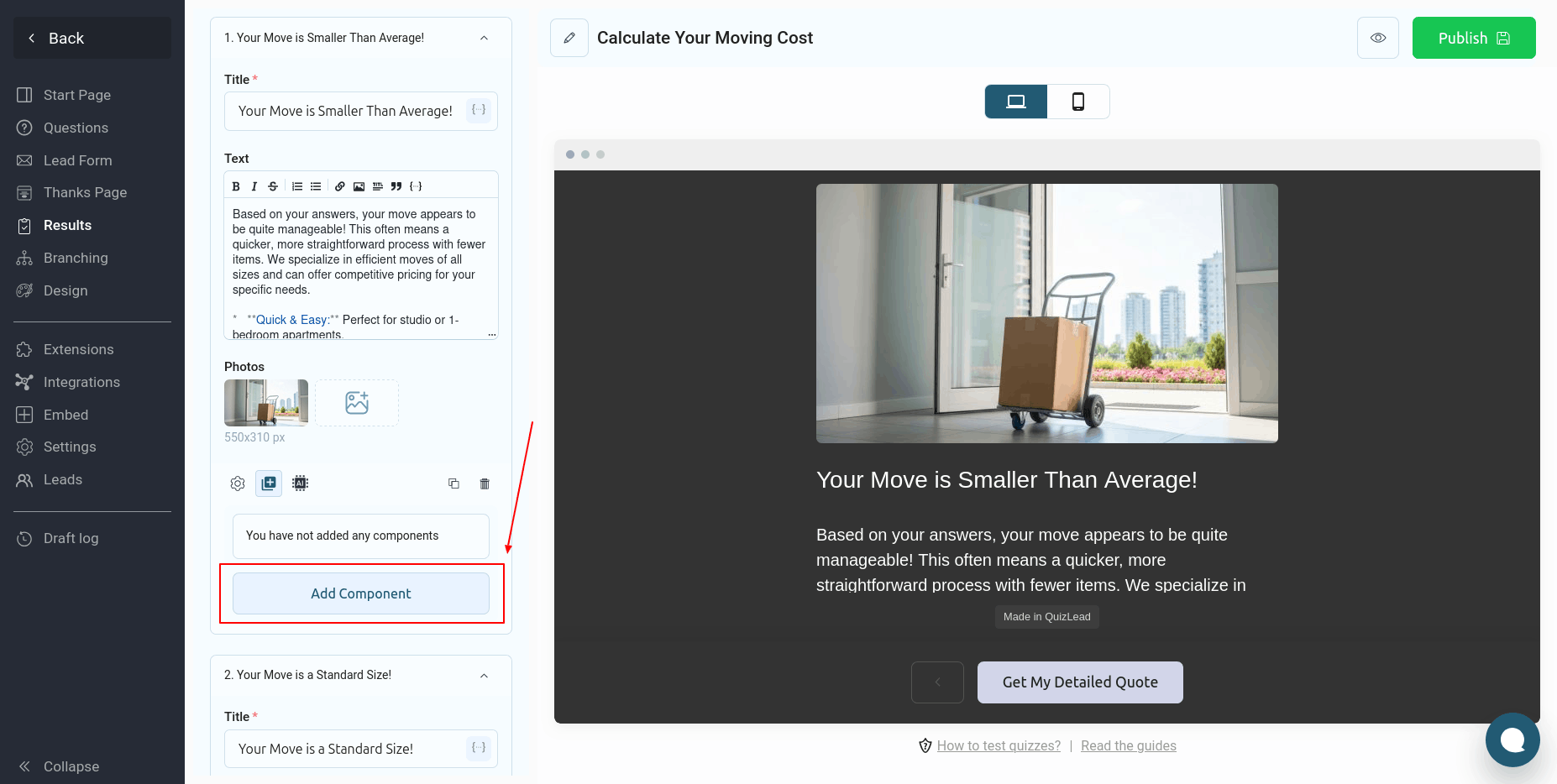
A section will open displaying all added blocks. To add a new block, click the "Add Component" button:
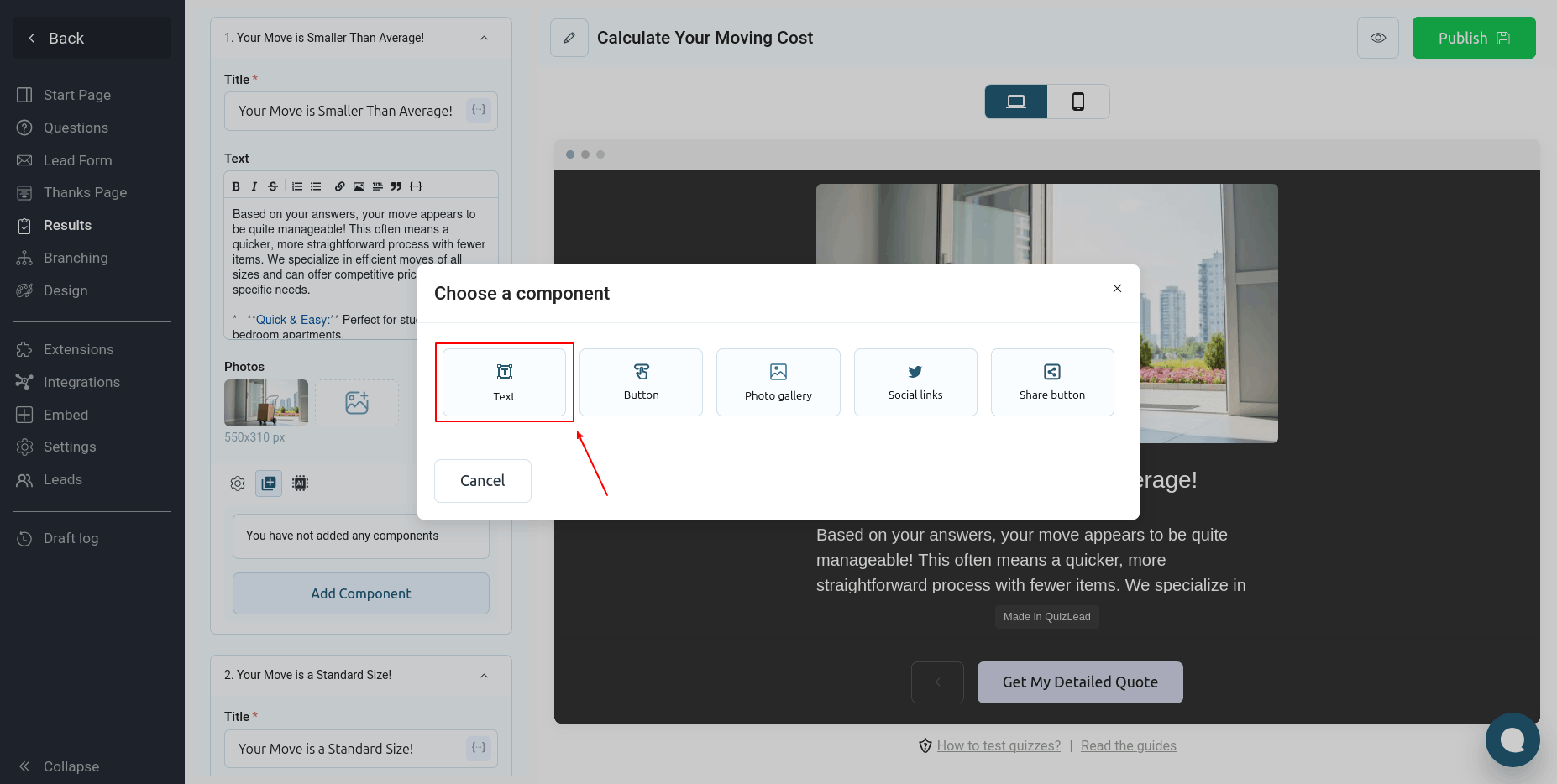
After this, a pop-up window will open in front of you, where you need to select which component will be added to the results page.
Text component
By selecting this component, a block will be added to the page in which the title and additional text will be displayed:

You can use Markdown syntax in the text field. Once you've added the desired text, click the "Save" button:
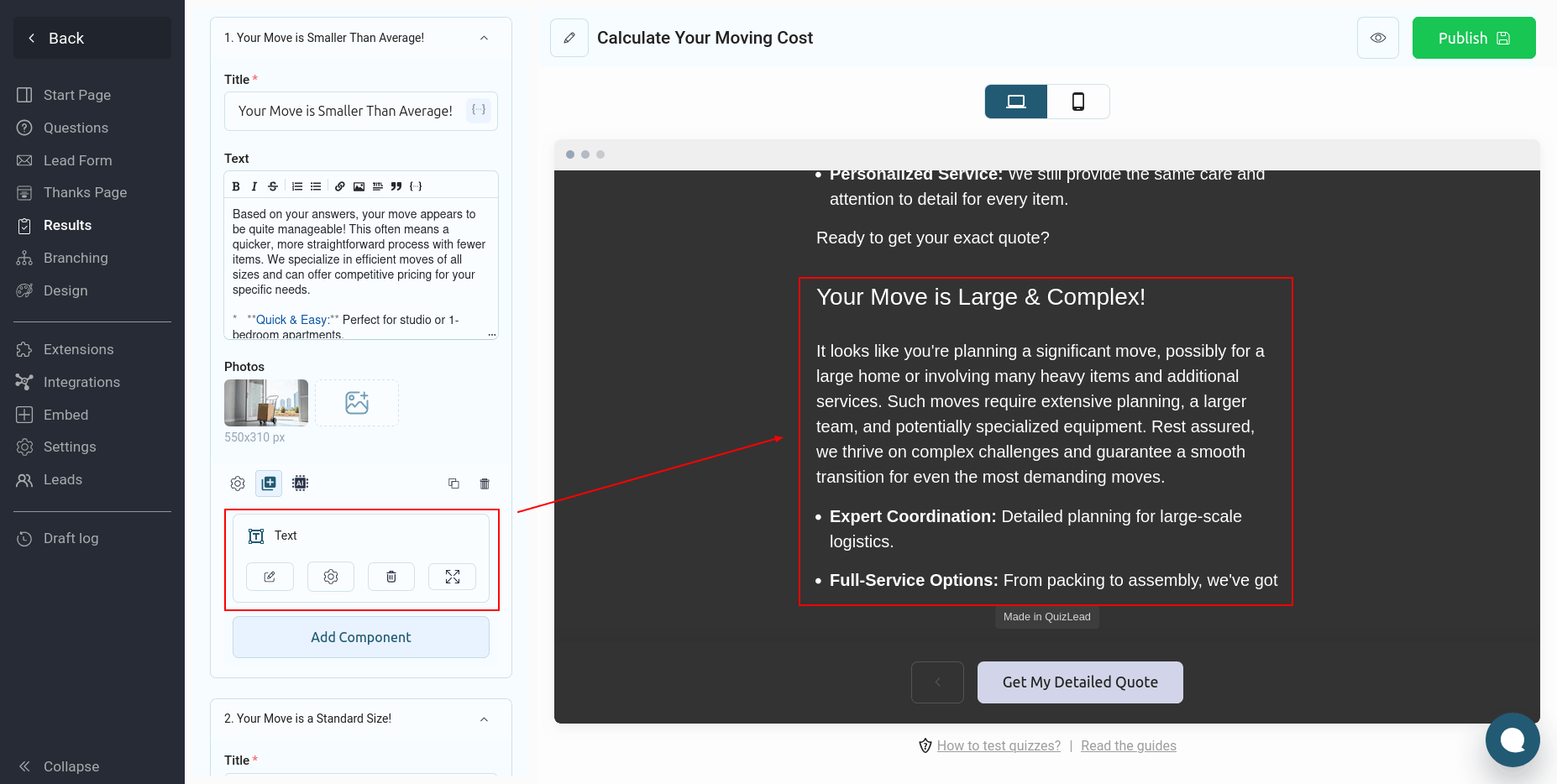
After which we can immediately see how this text looks on the results page.
Button component
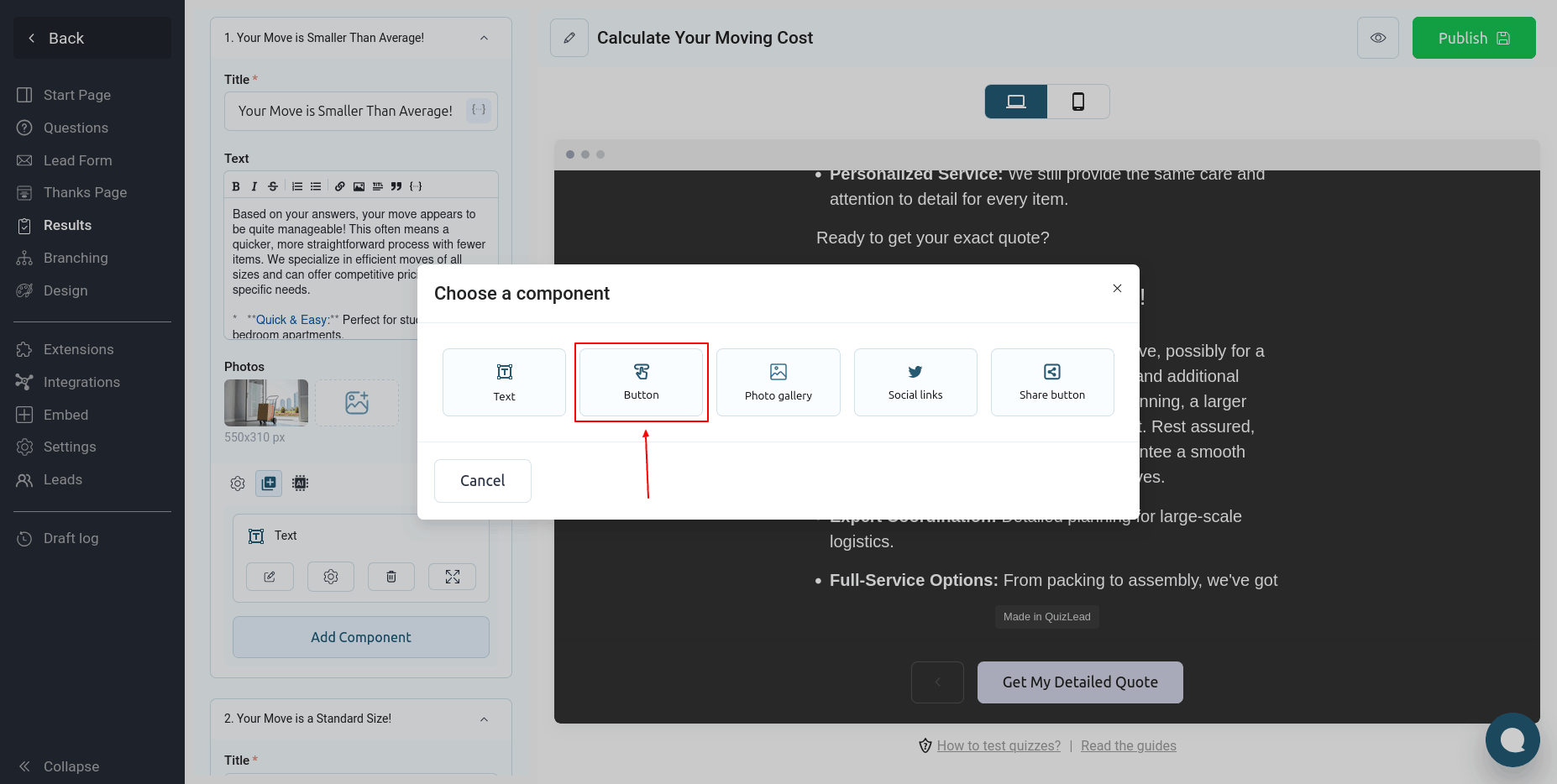
Using this component you can add a button and set up a URL link for it:
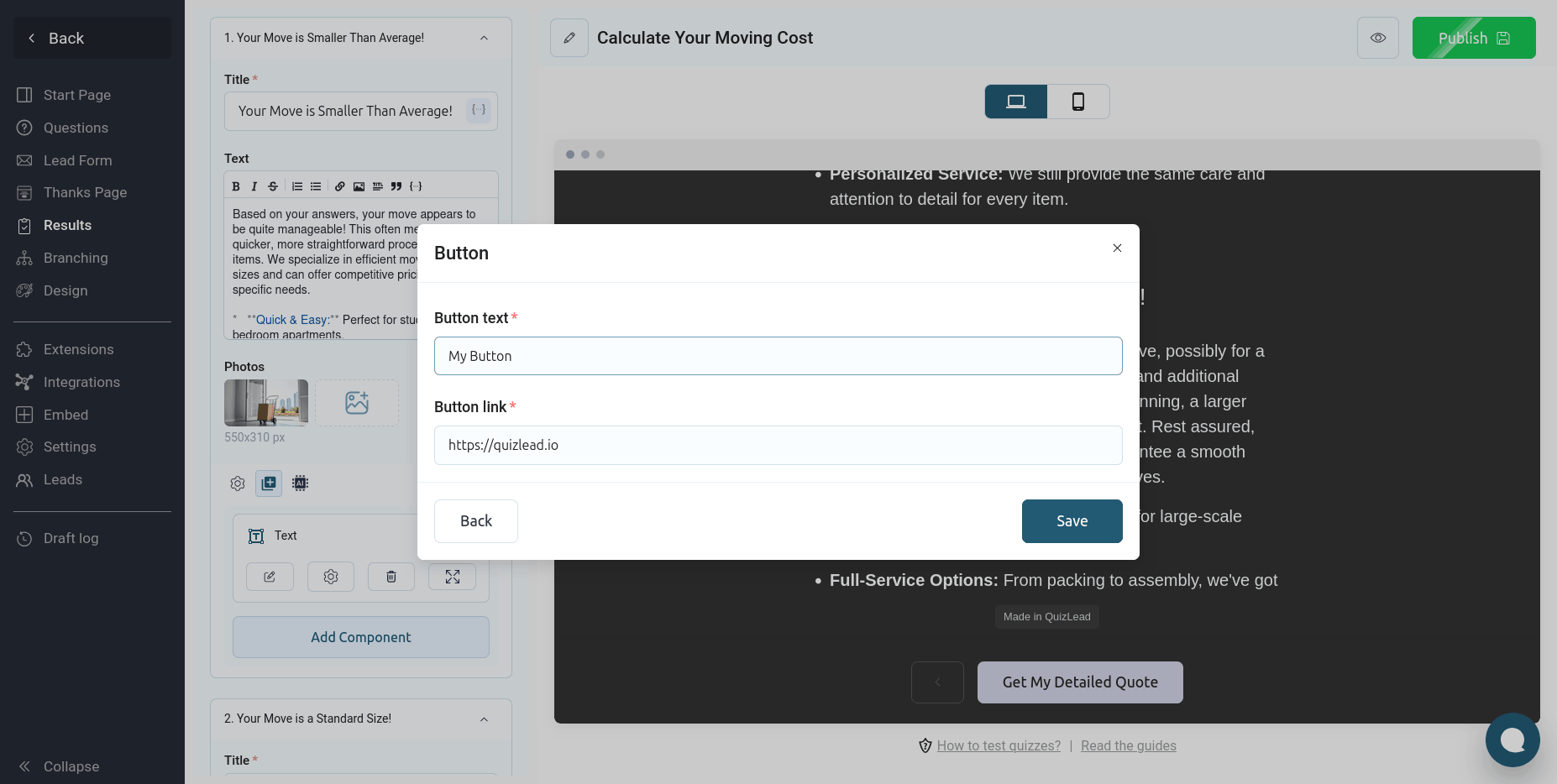
Here's what the button looks like on the results page:
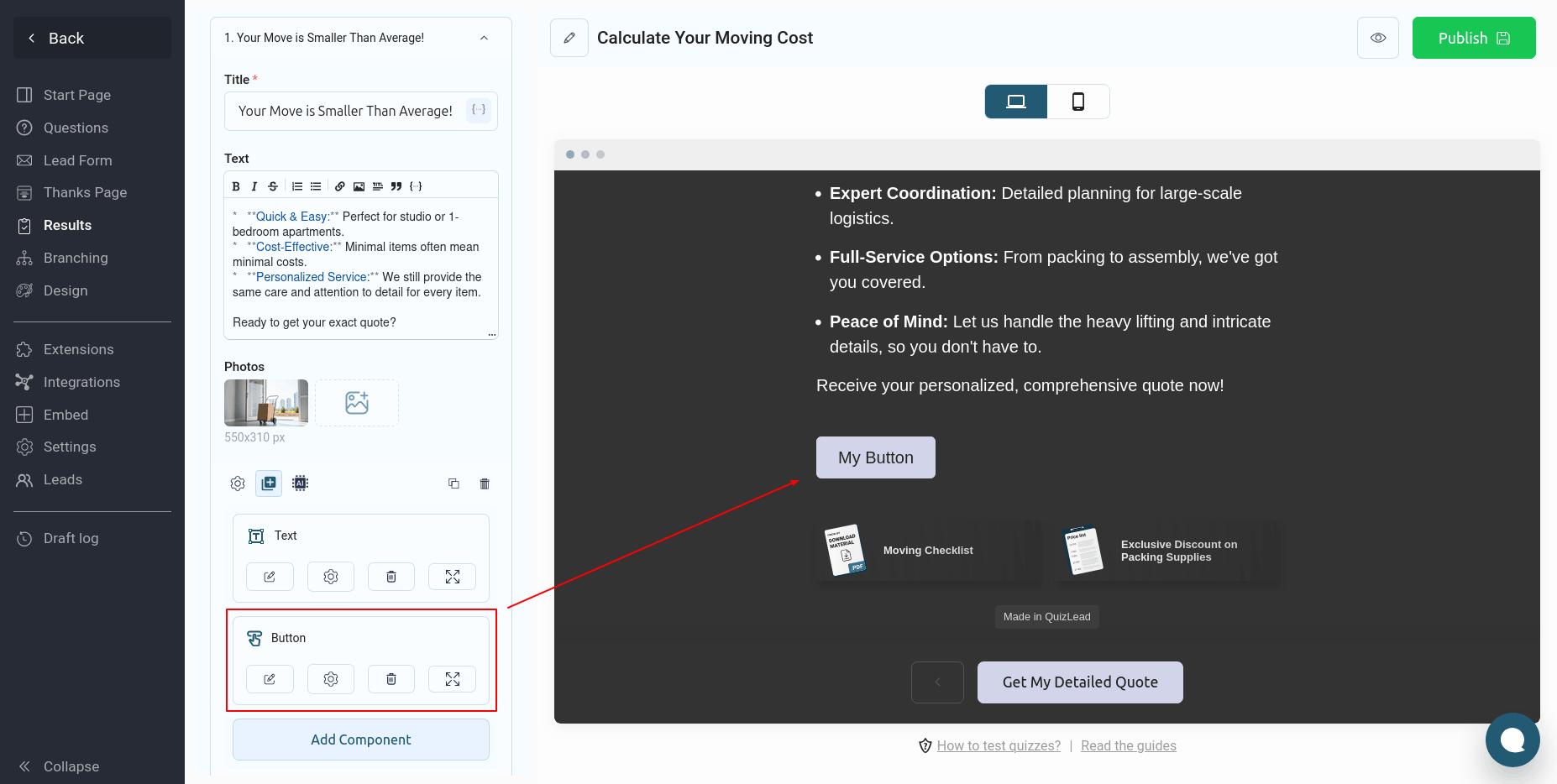
Photo Gallery component
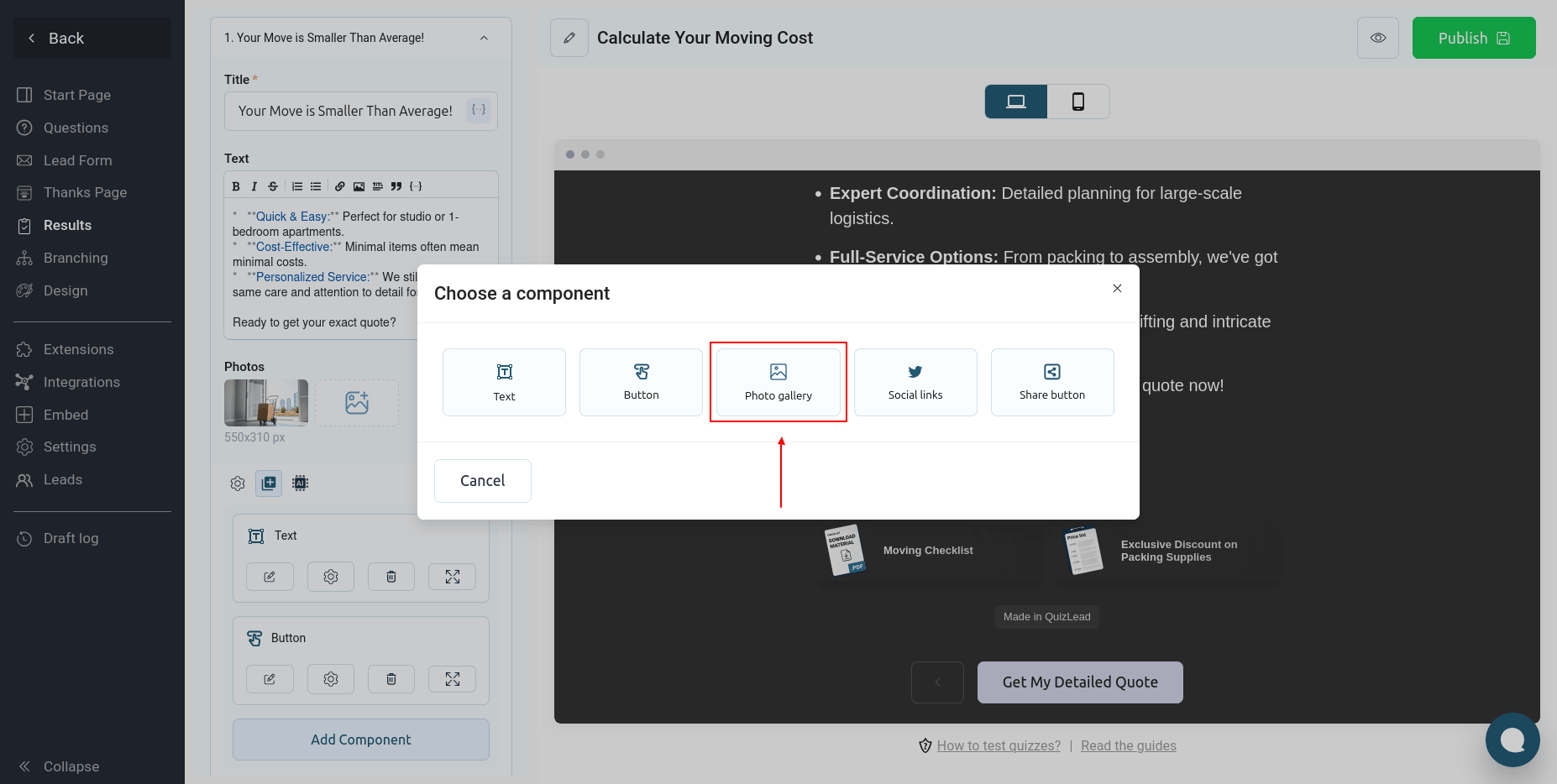
Using this component, you can add multiple images that will be displayed in a convenient form with thumbnails:
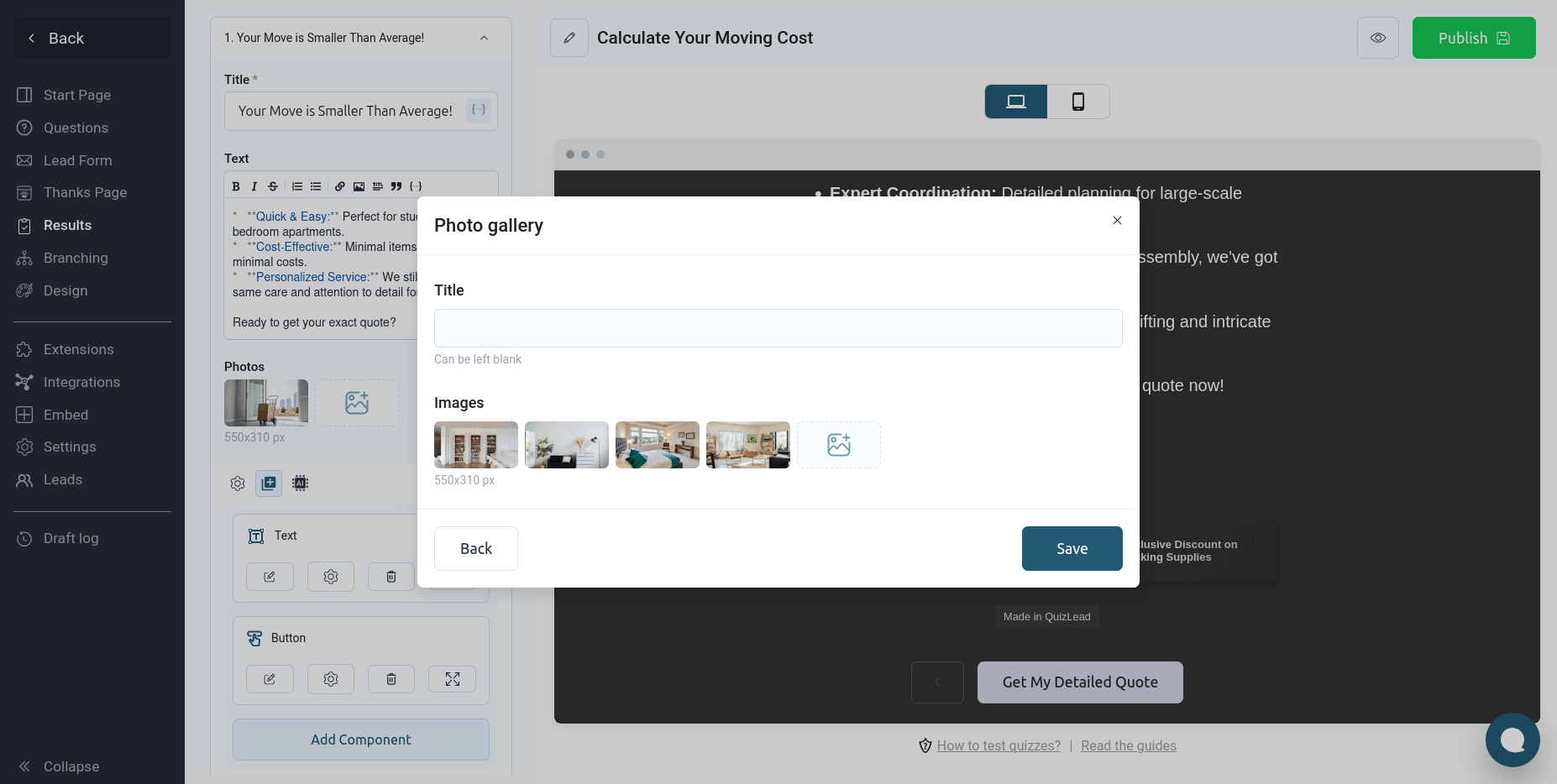
This is what it looks like on the page:
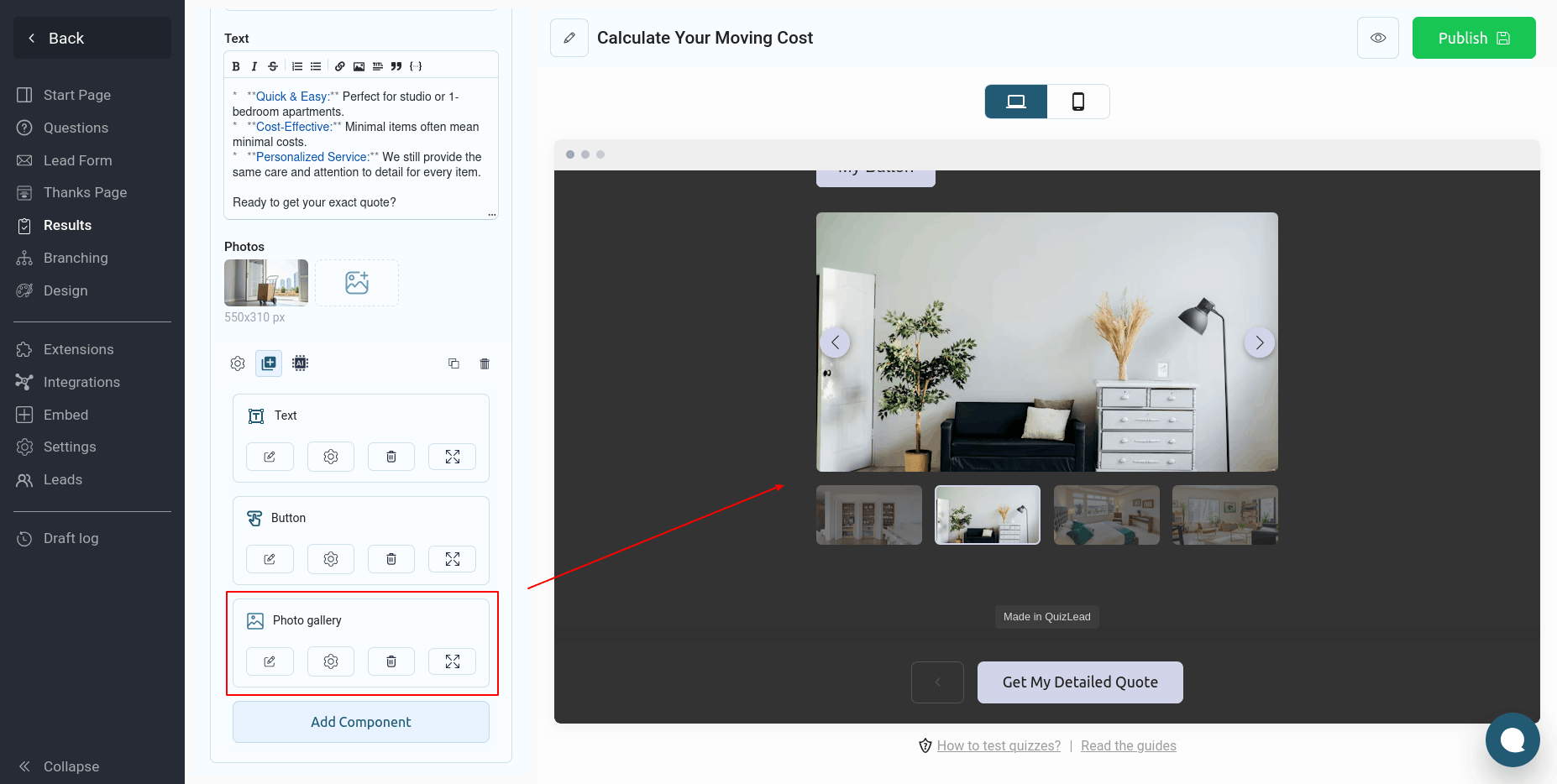
Clicking on the main image will open it in full screen.
Social links Component
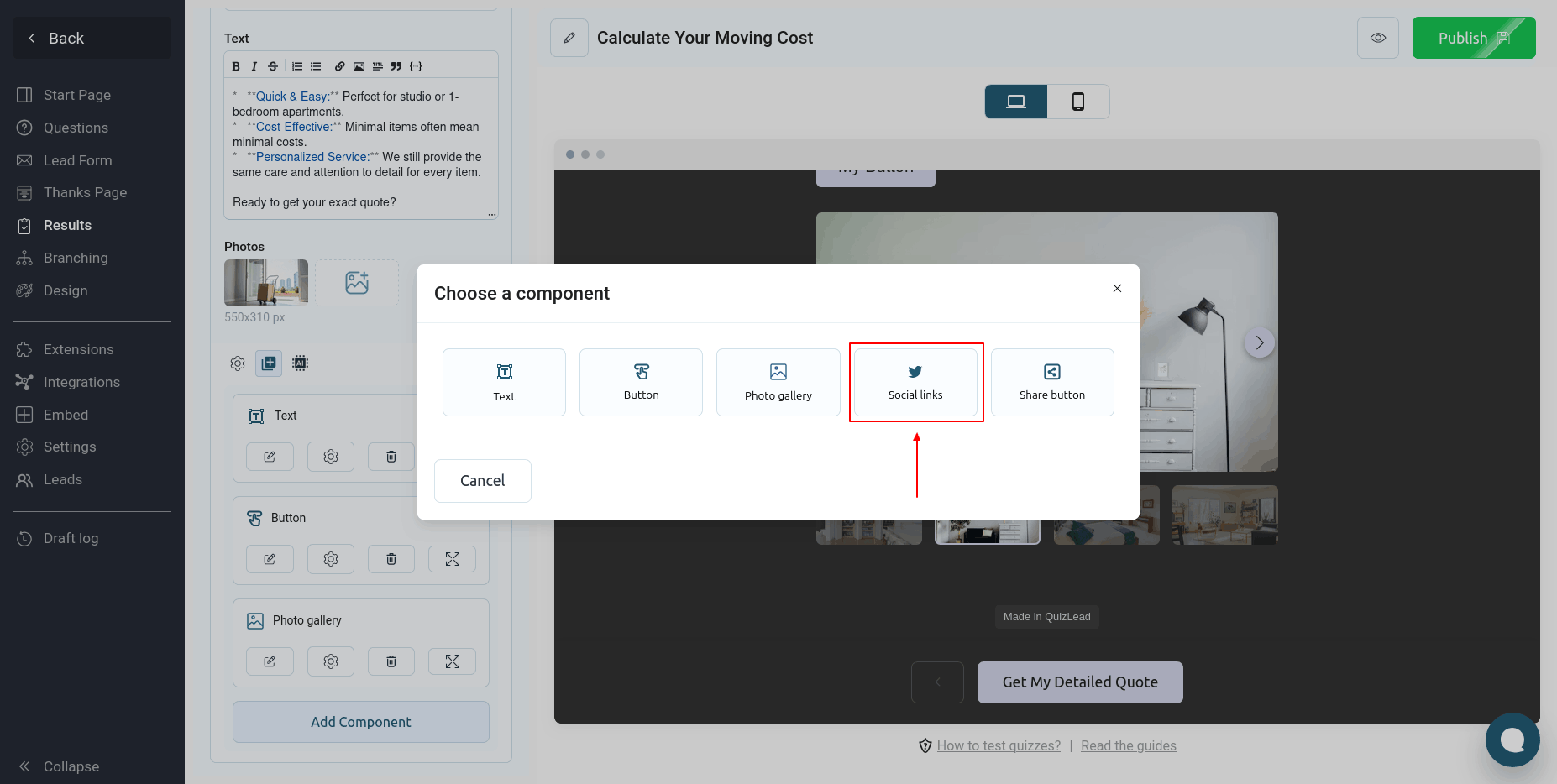
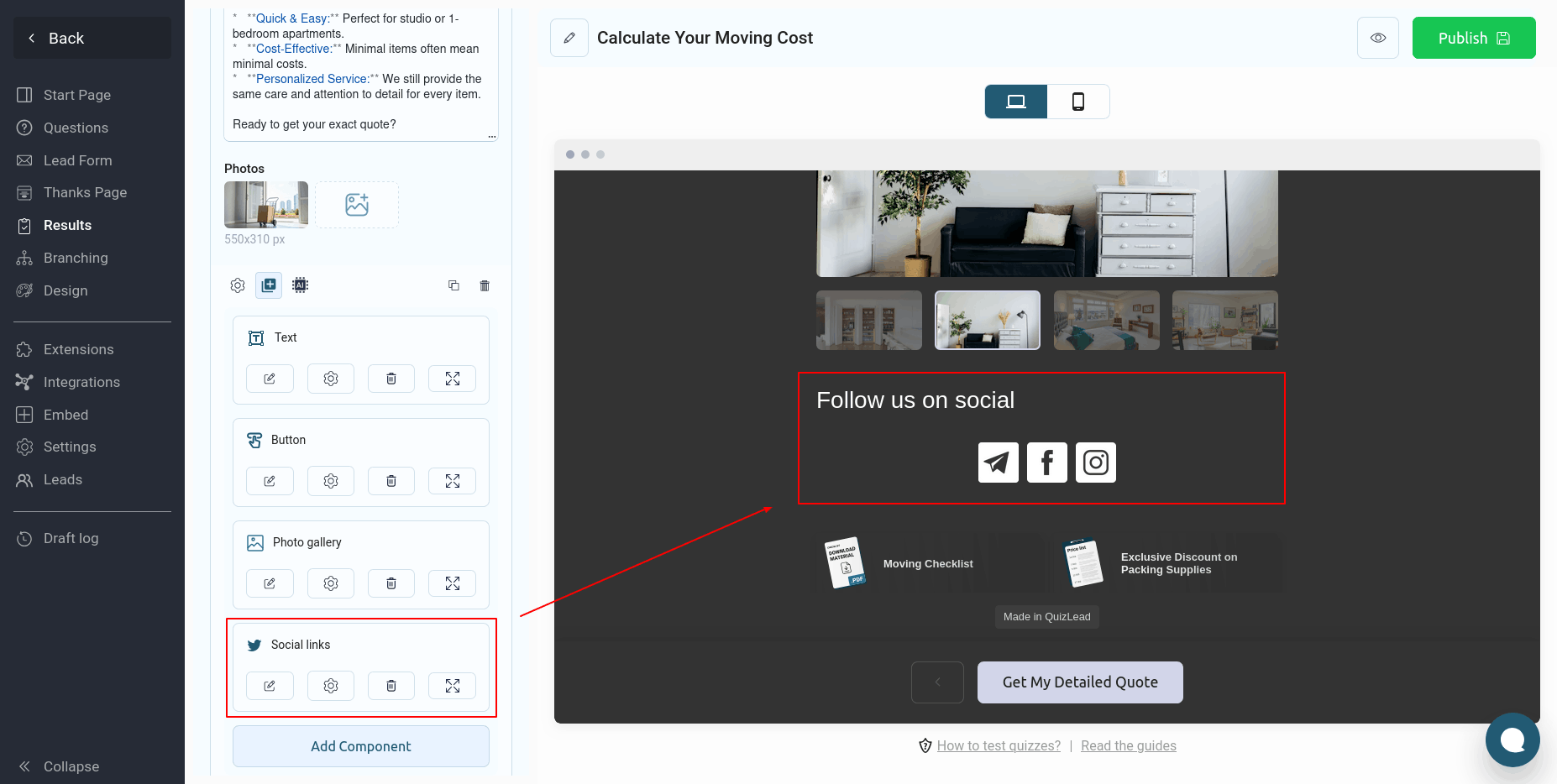
Using this component, you can add links to your social networks to your page:
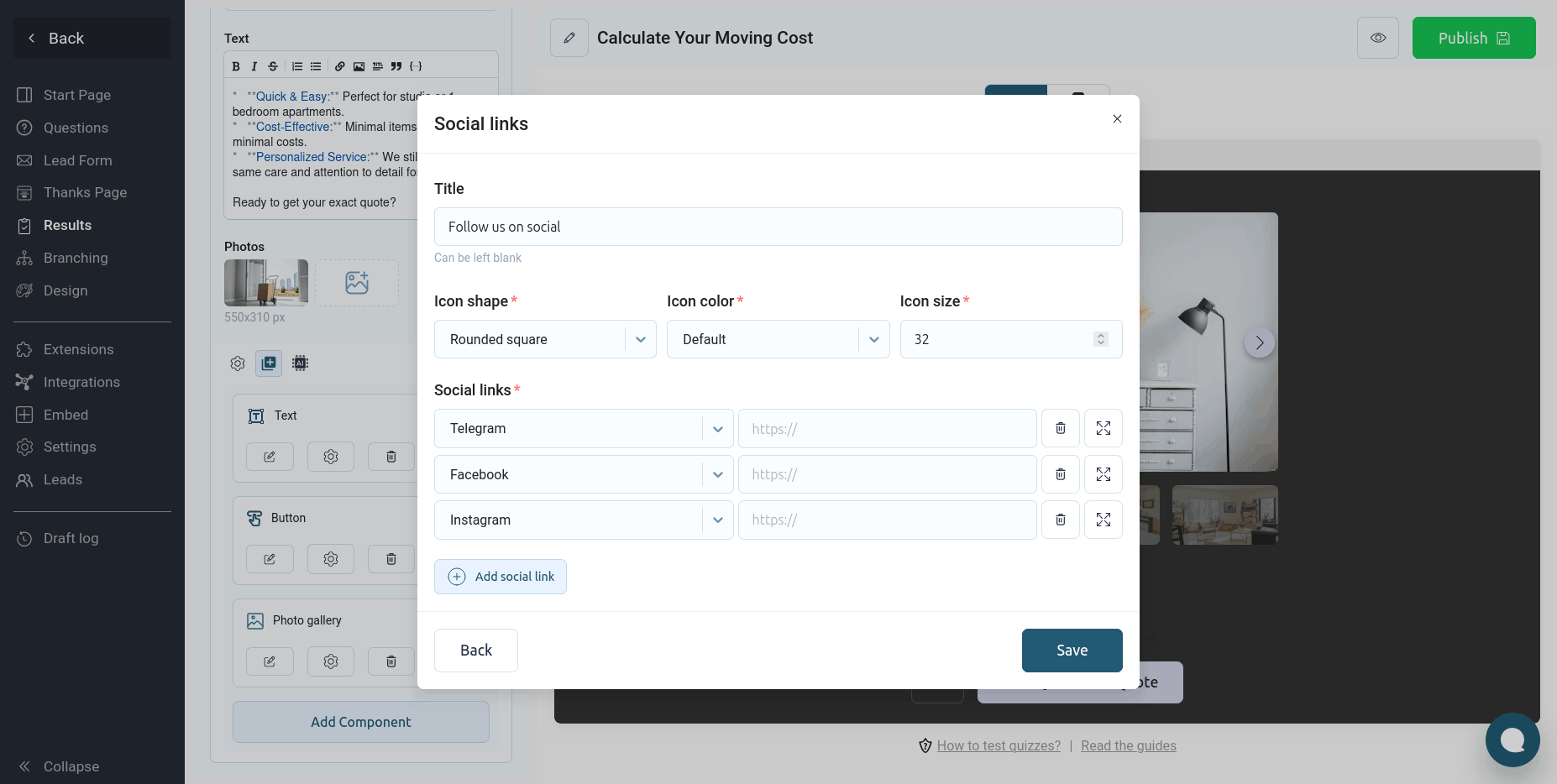
Here you can customize the icon shape, color and size.
Share component
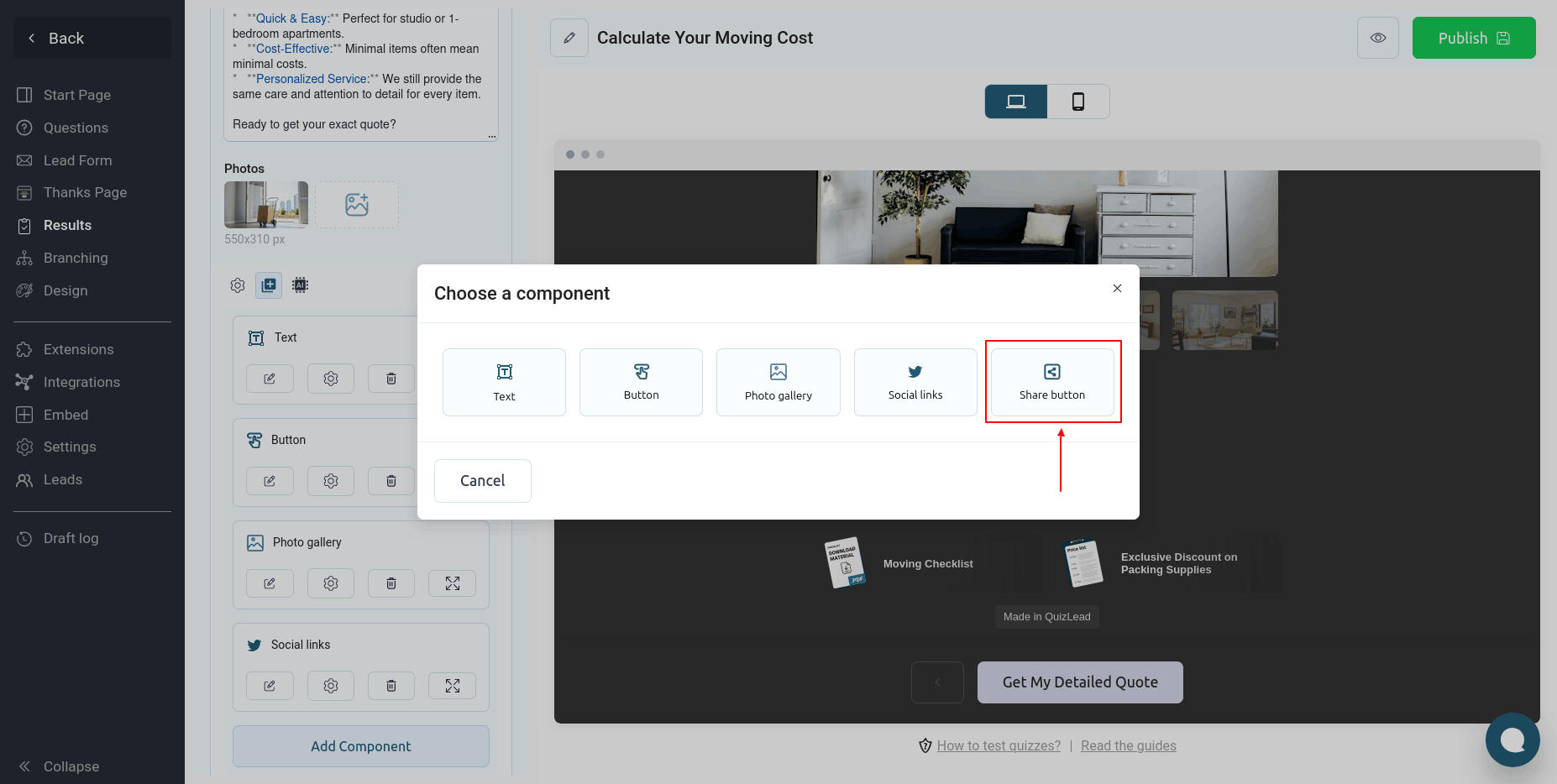
This component adds a button to the page for sharing the quiz result on social networks.
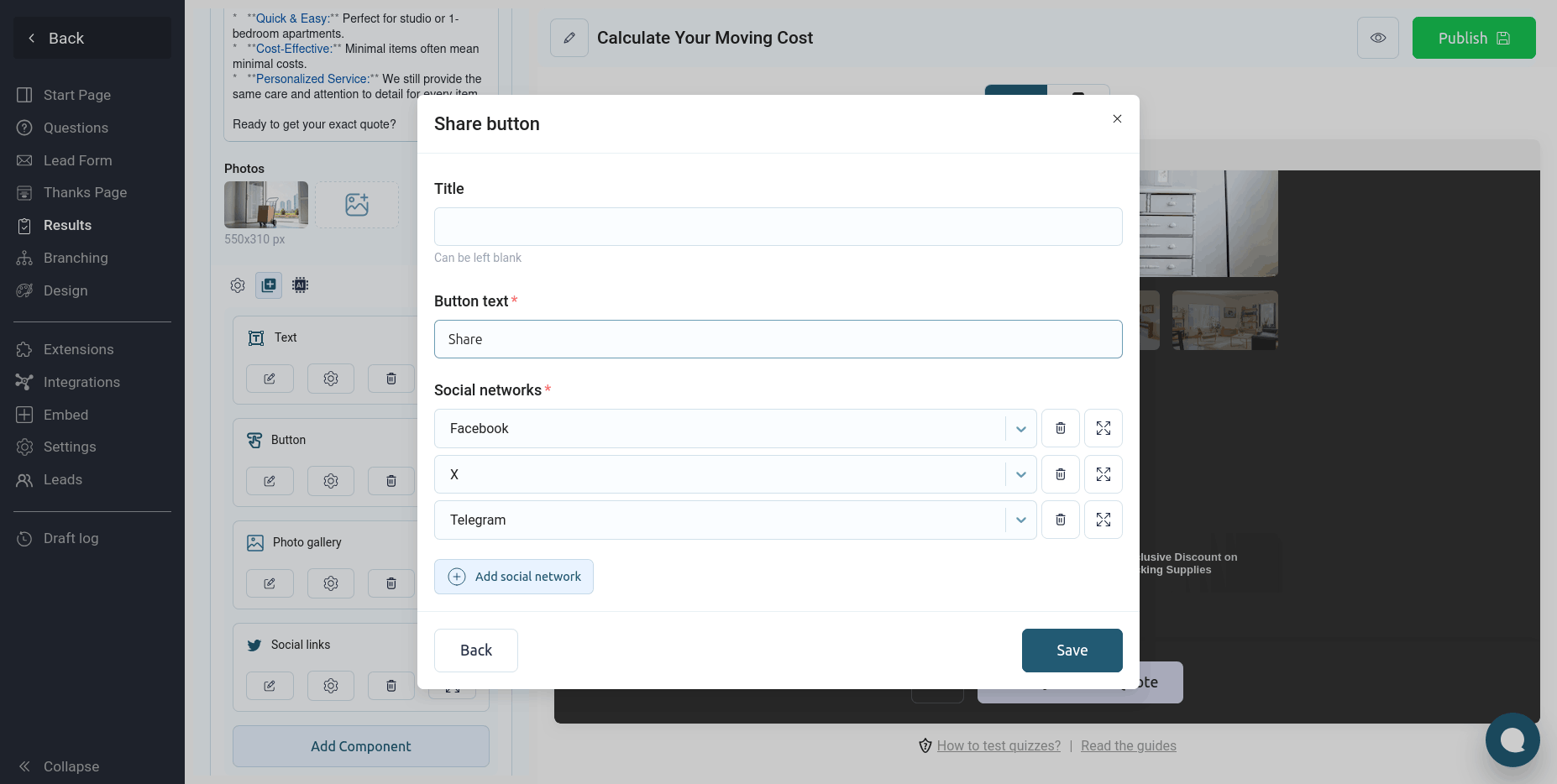
Here you can customize the title, button text, and list of required social networks:
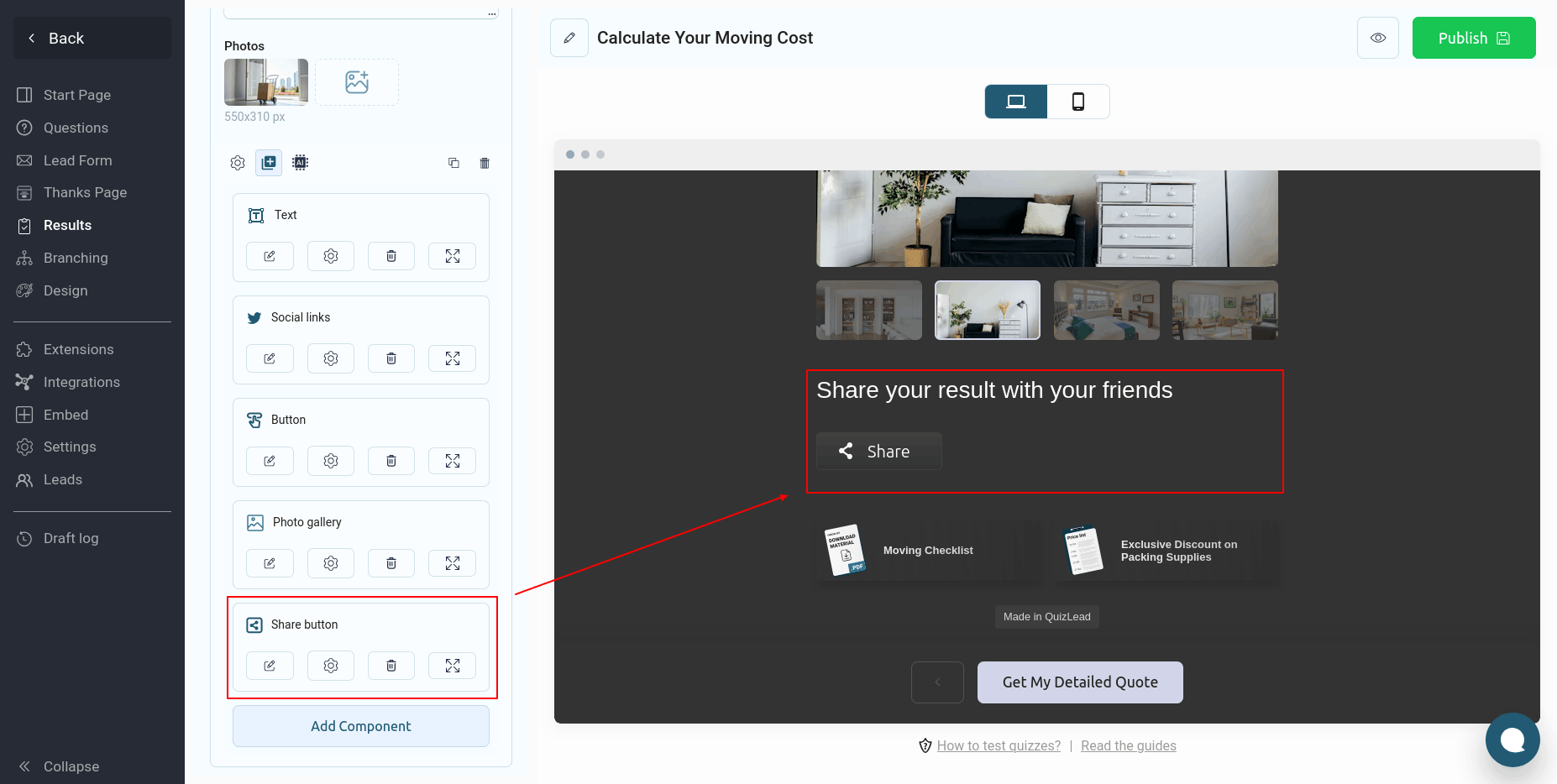
You can rearrange, edit, or delete all components on the page as needed. You can also customize the component's display on the page.
Configuring component display
For each component on the page, you can customize the padding and background that will appear on the page. To do this, click the gear icon, as shown below:
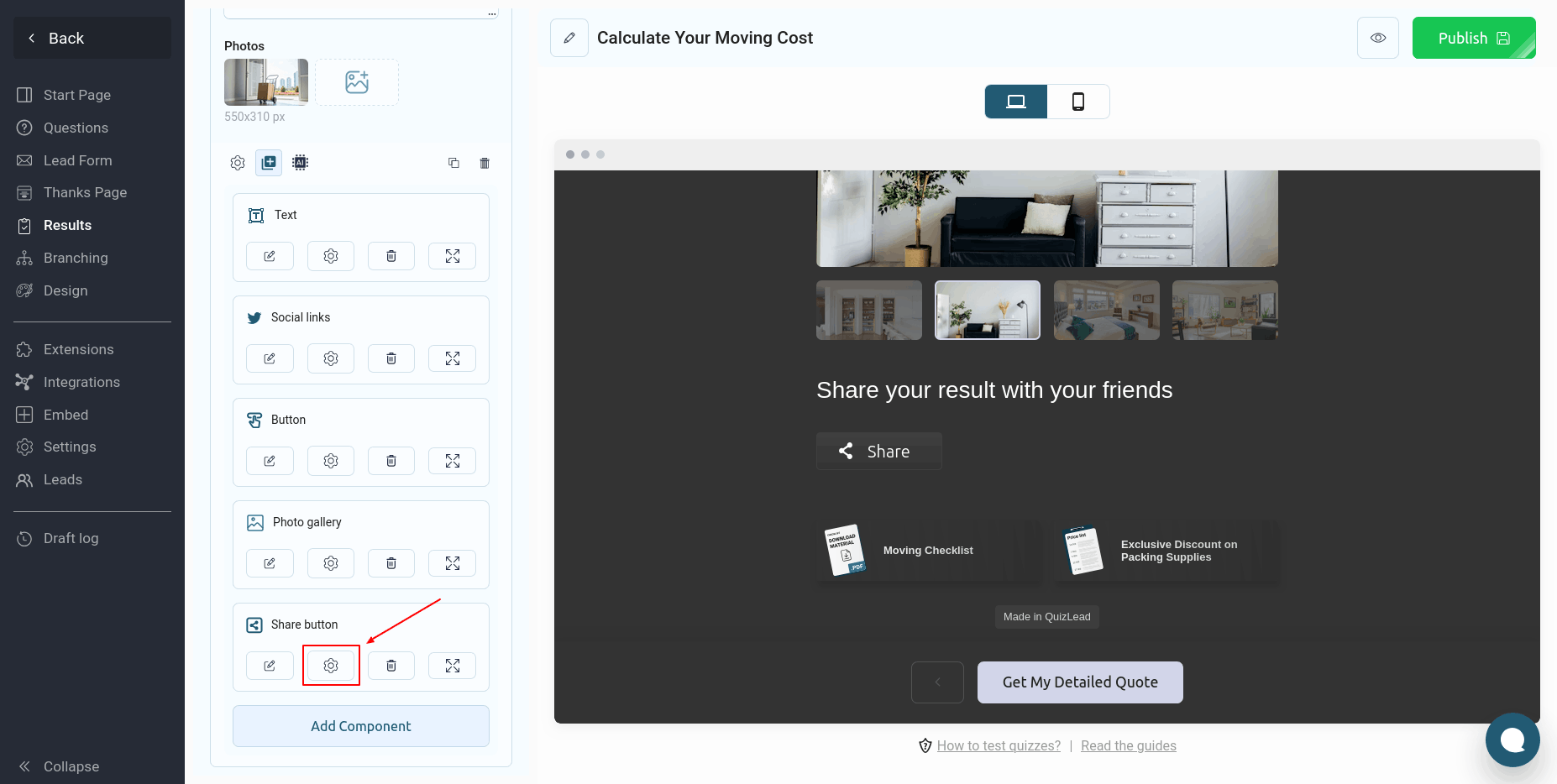
After which the following window will open in front of you:
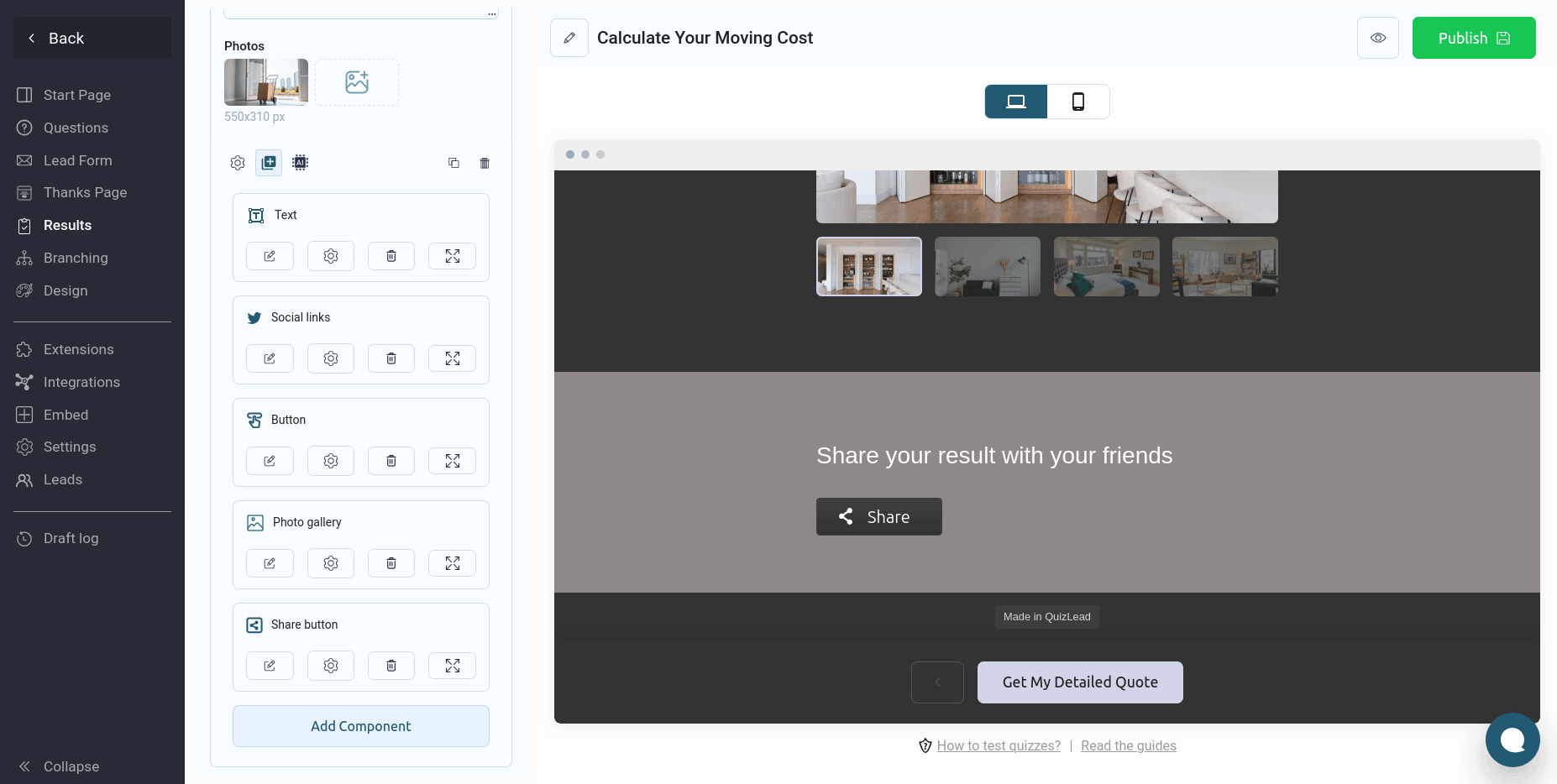
Here you can specify the background color of the component, as well as adjust the top and bottom padding.