
With QuizLead, you can easily create a fully functional online calculator for calculating the cost of a product or service. Our editor allows you to create even the most complex calculation formulas without the need for a programmer.
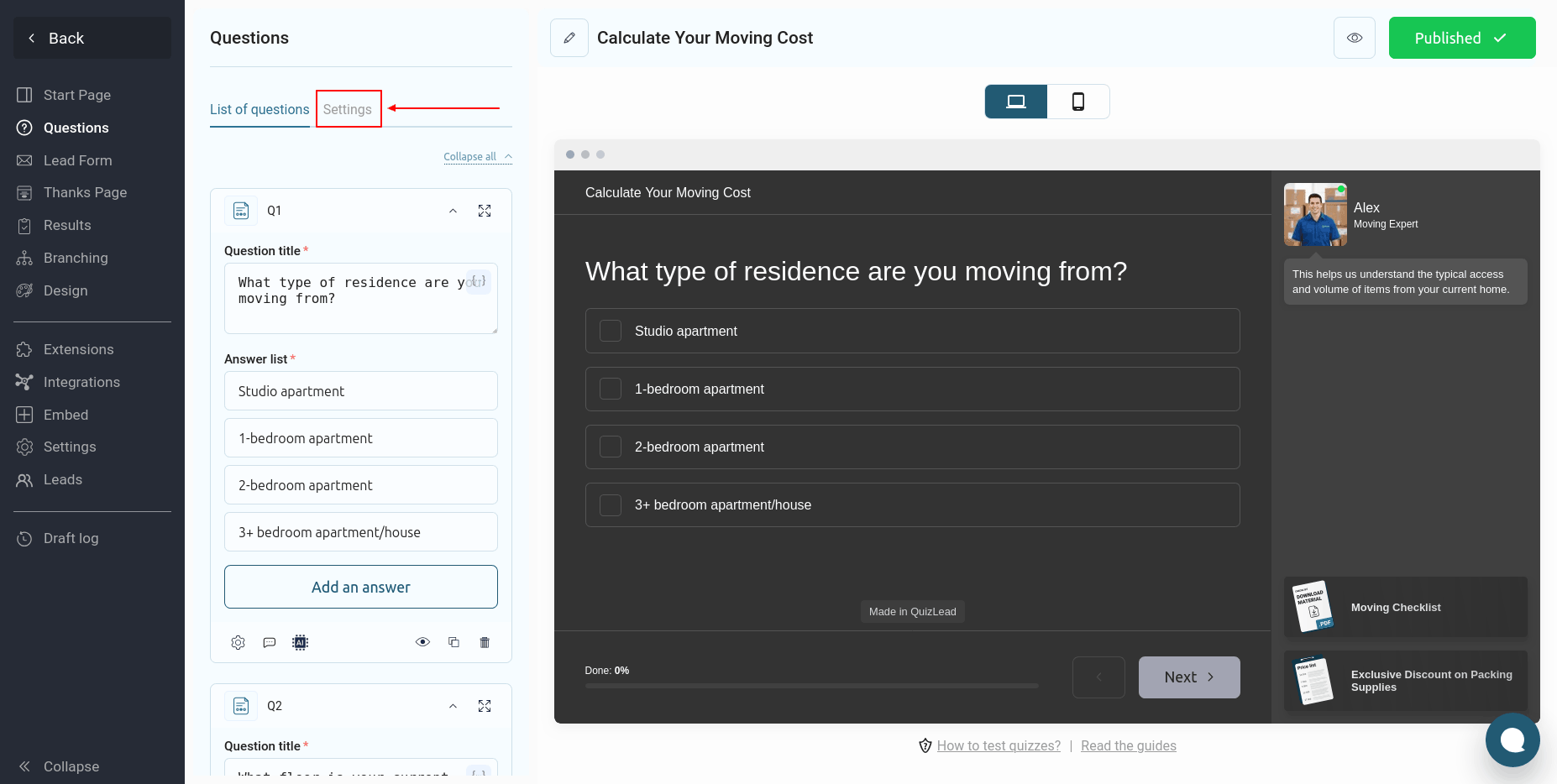
To set up a calculator in a quiz, go to the "Questions" section of the quiz and switch to the "Settings" tab:
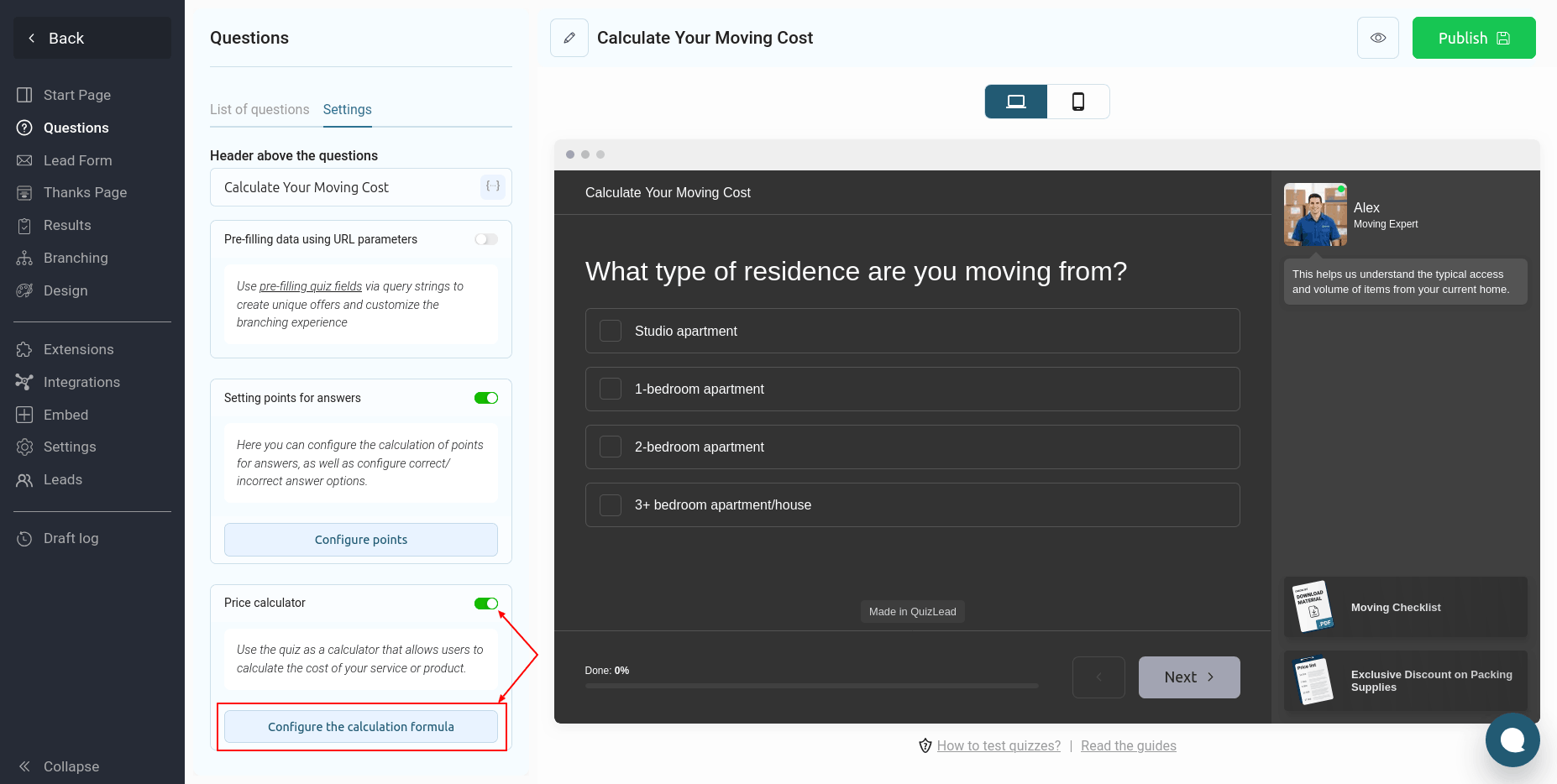
Find the "Price Calculator" block, activate the switch and click the "Configure the calculation formula" button:
A window will open in front of you where you can manage calculation formulas:
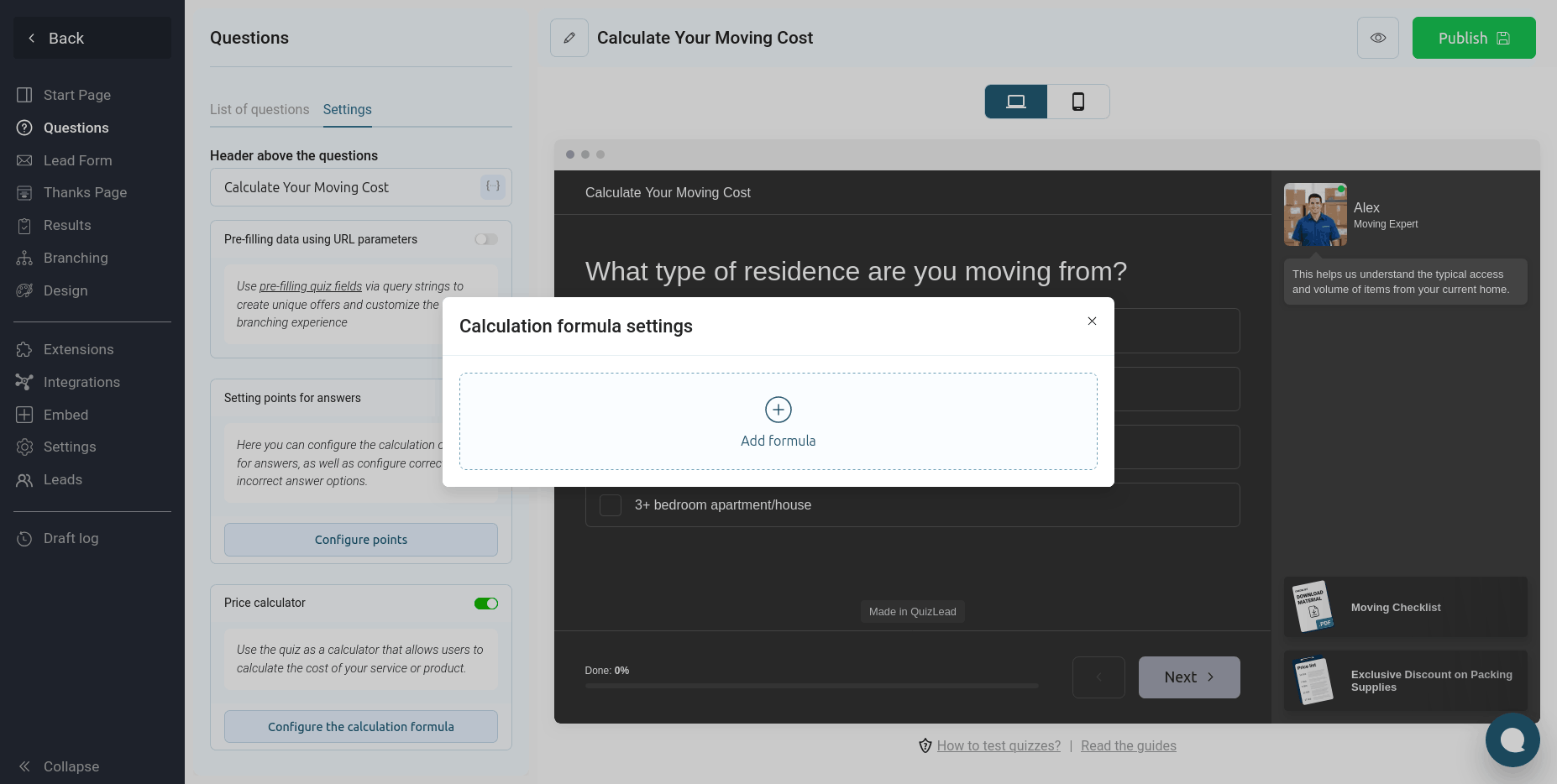
To add a formula, click the "Add formula" button and you will be taken to setting up the calculation formula itself:
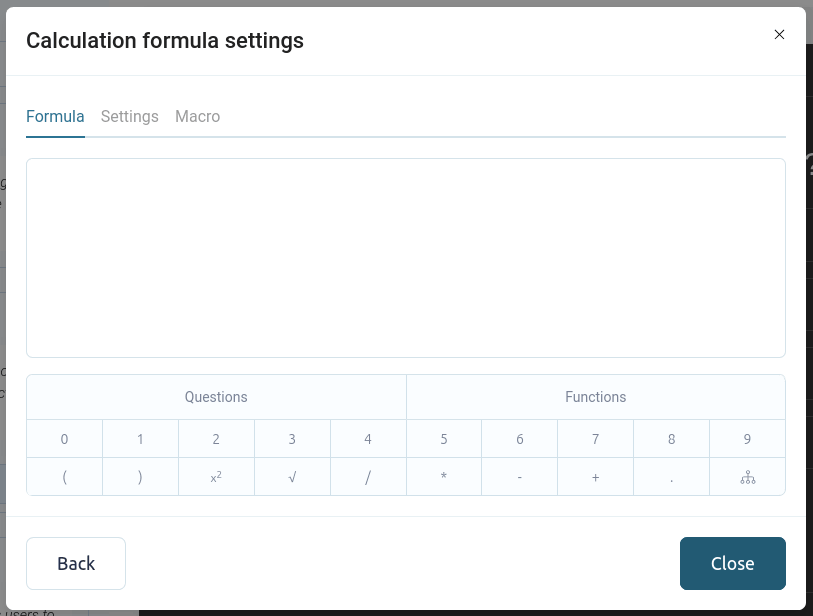
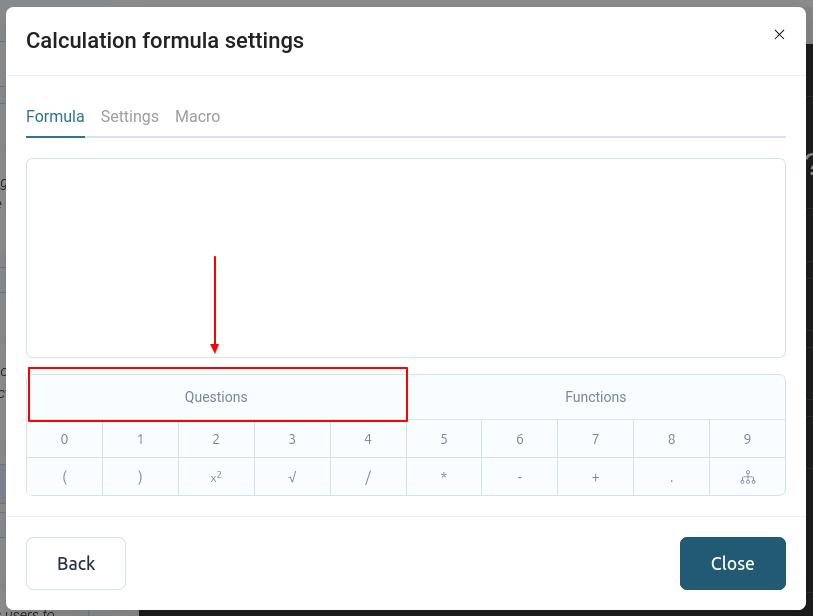
In the "Formula" section, you can configure the chat's mathematical formula. You can use basic mathematical operations. To add quiz question values, click the "Questions" button:
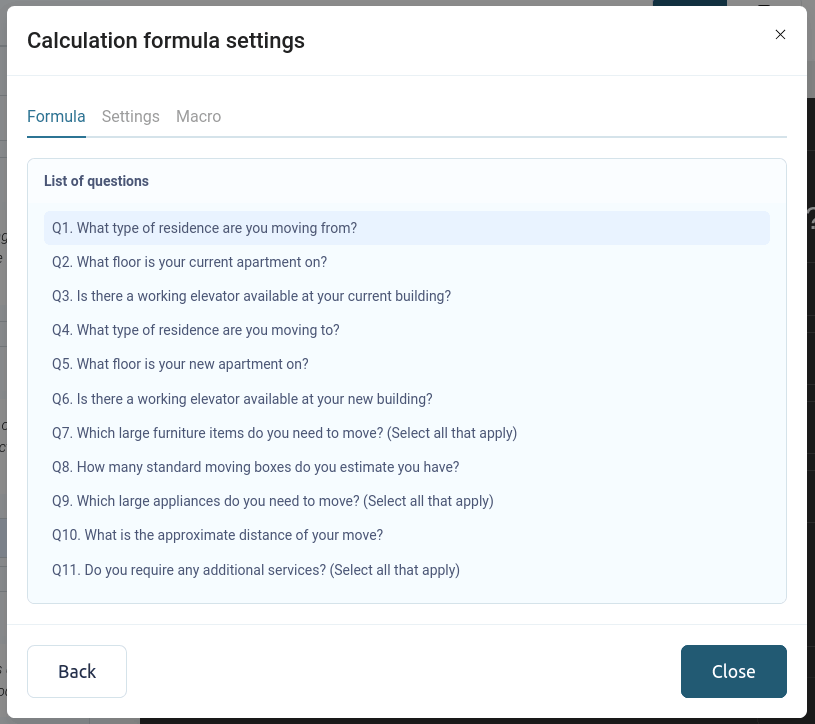
A list of all your quiz questions will open in front of you:
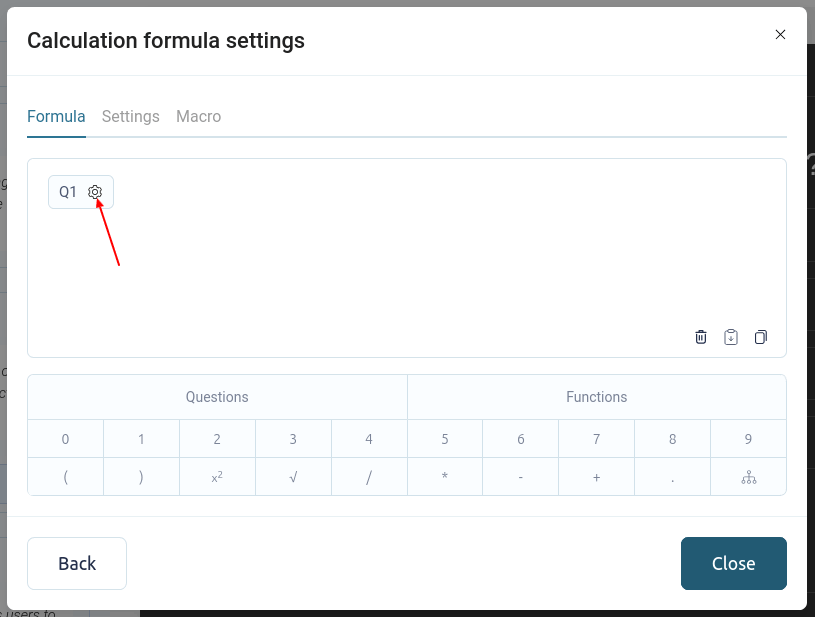
Select the desired question and click on it. You can then configure different values for each answer option. To do this, click the settings icon, as shown below:
Set the desired price values for each answer option:
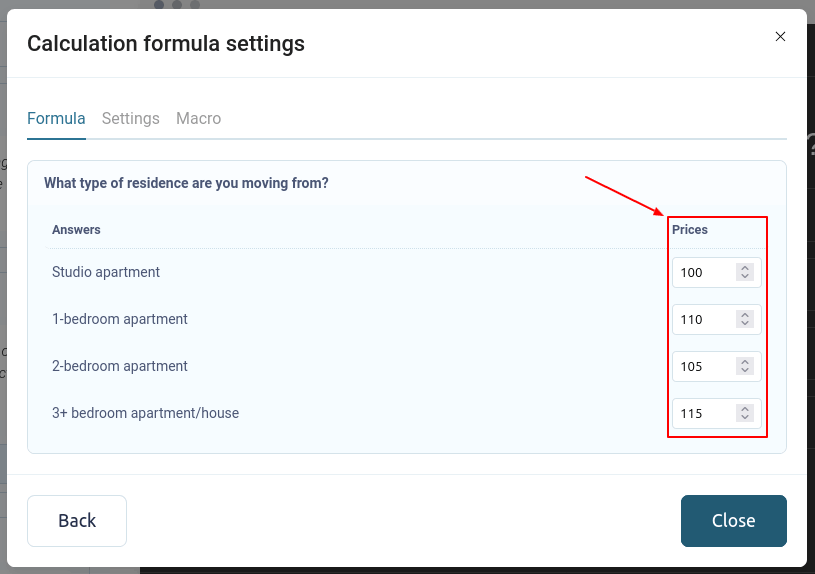
To return to formula settings, click the "Back" button.
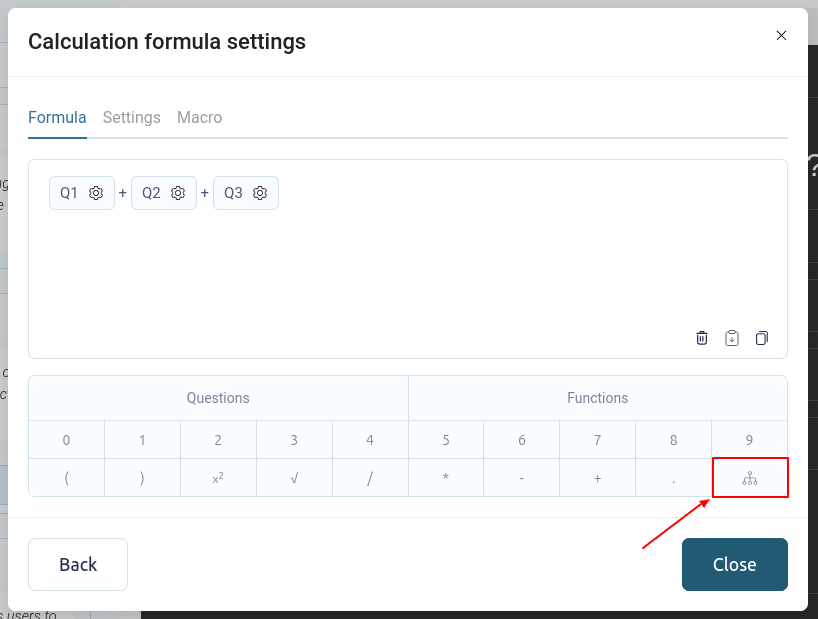
To set up more complex formulas, you can use "Conditions". To add a condition to a formula, click the button as shown below:
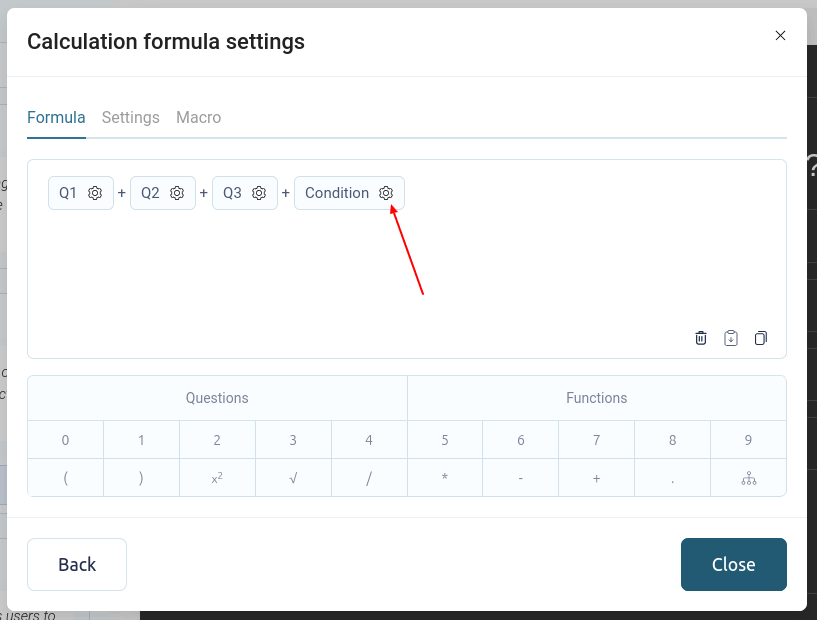
Then proceed to setting up the required conditions. To do this, click the settings icon:
The settings page for this block of conditions will open in front of you:
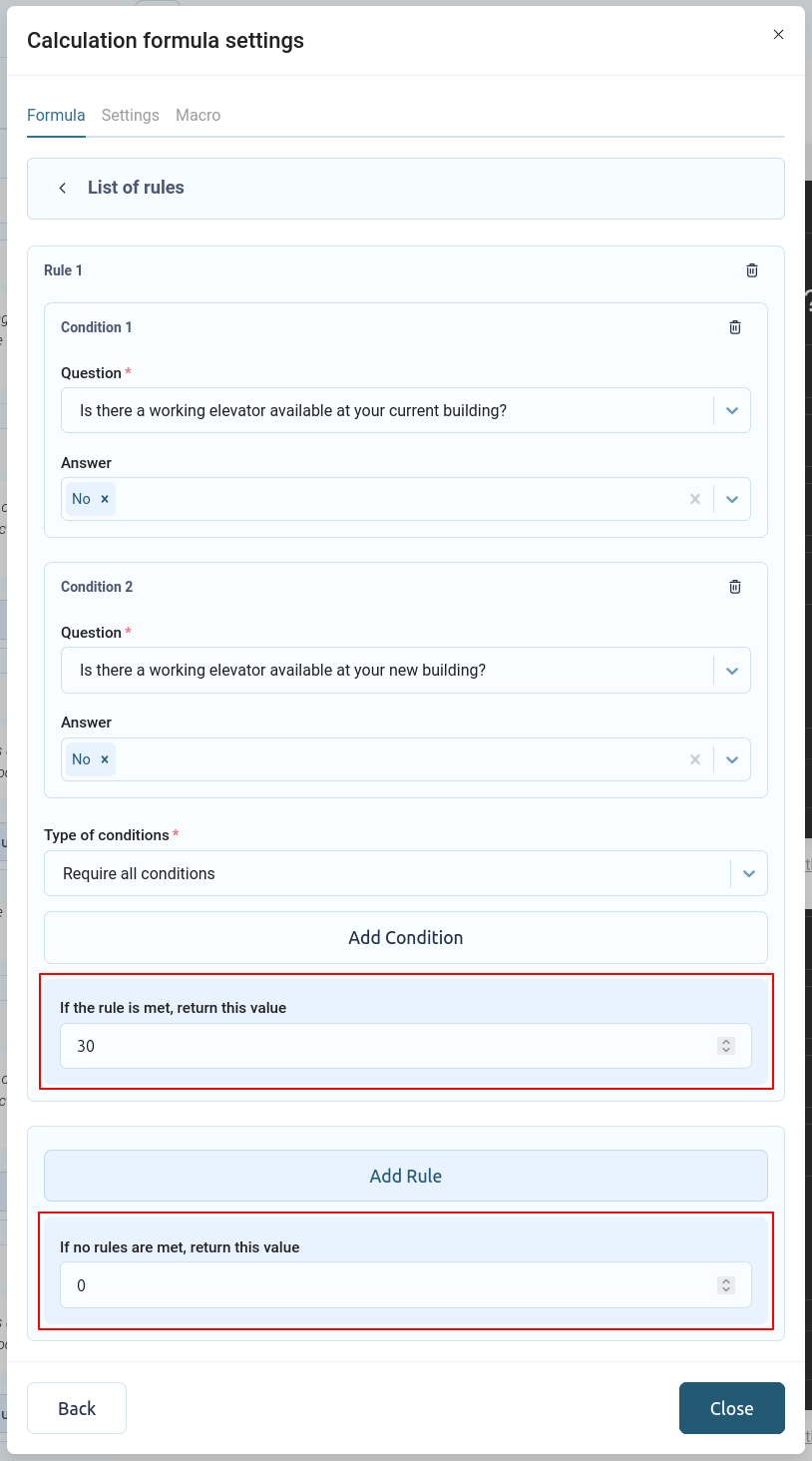
How does this condition block work?
In this block, you can add multiple rules. Each rule can have multiple conditions. If all conditions in a rule are met, it is considered valid and the value from that rule is returned to the formula.
If any condition is not met, the system moves on to checking the next rule until it finds a valid rule.
If none of the rules are triggered, the formula returns the default value that you set at the very bottom of the block.
Mathematical functions in formula
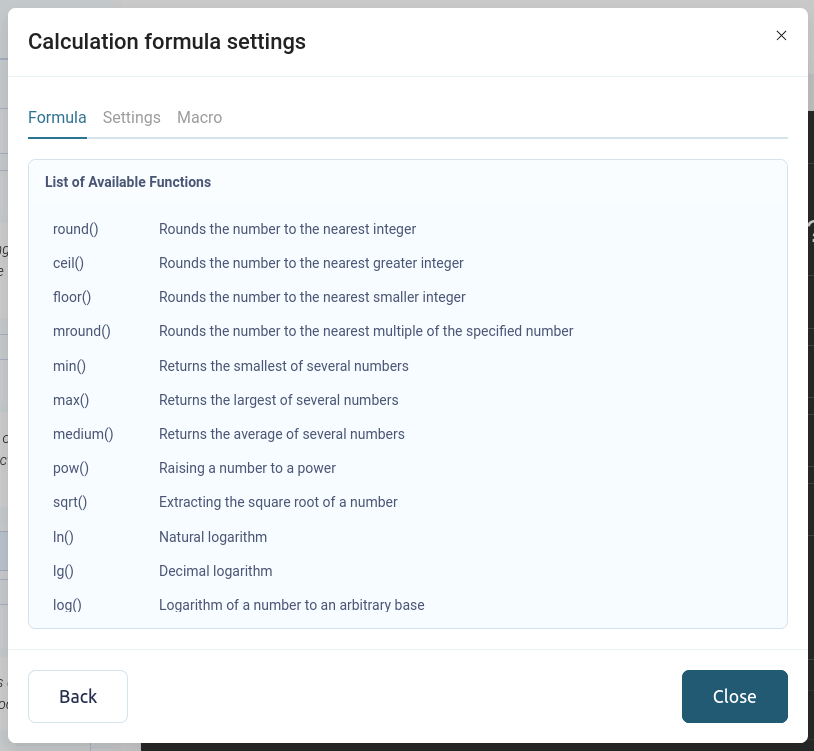
In addition to simple mathematical operations, the formula can use additional functions that will be necessary for complex calculations:
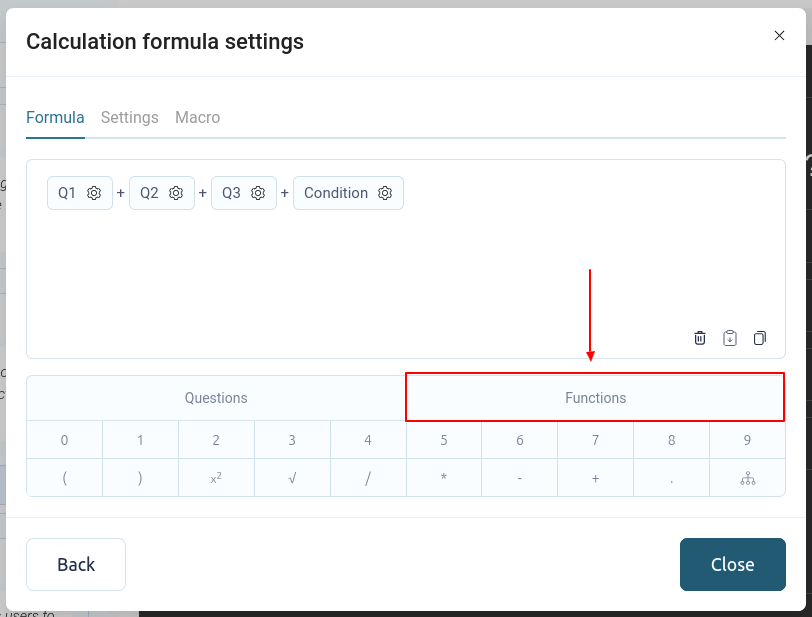
By clicking this button you will see a list of all available functions supported by our formula editor:
Setting up the display of a formula in a quiz
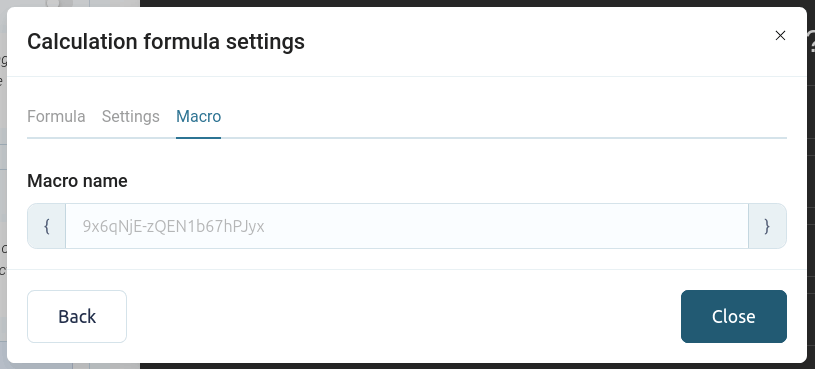
By default, formulas are calculated but not displayed anywhere in the quiz. You can view the calculated values in the CRM or use macros for these formulas to display the values on the results page.
The name of this macro can be customized in the "Macro" section:
To display the formula value directly in the quiz, you can switch to the "Settings" section:
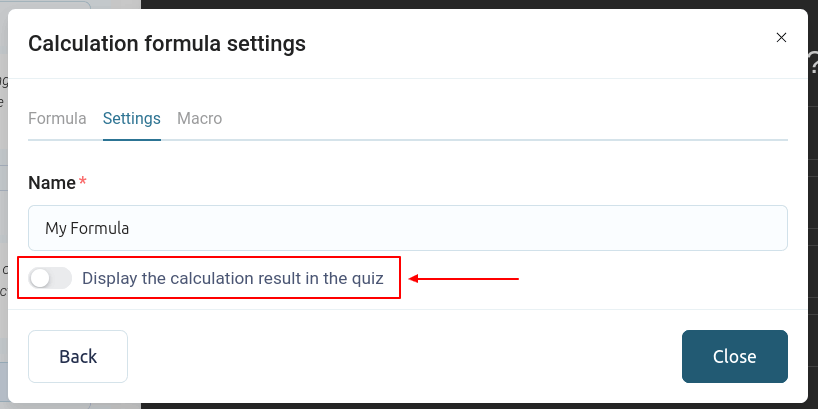
Activate the "Display the calculation result in the quiz" switch and enter the title that will be displayed in the quiz:
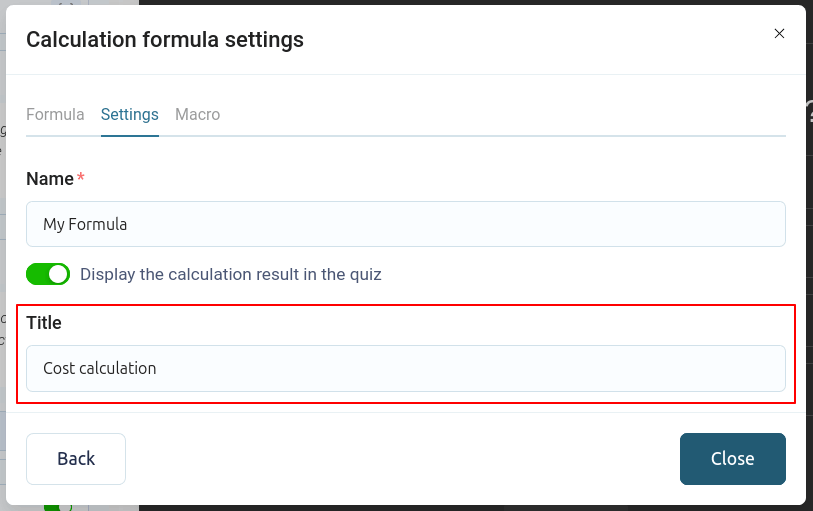
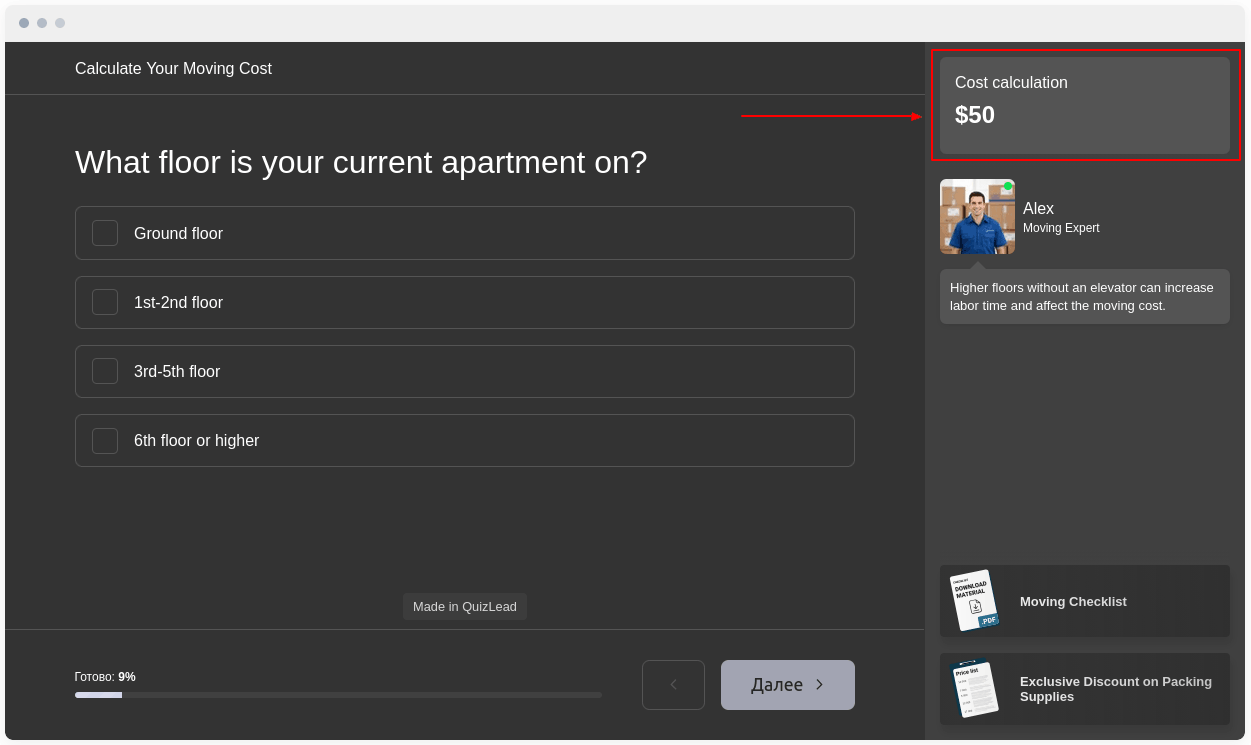
Once all the data is configured, don't forget to publish the changes to your quiz. This formula will then appear in your quiz's sidebar:
Find the "Price Calculator" block, activate the switch and click the "Configure the calculation formula" button:
A window will open in front of you where you can manage calculation formulas:
To add a formula, click the "Add formula" button and you will be taken to setting up the calculation formula itself:
In the "Formula" section, you can configure the chat's mathematical formula. You can use basic mathematical operations. To add quiz question values, click the "Questions" button:
A list of all your quiz questions will open in front of you:
Select the desired question and click on it. You can then configure different values for each answer option. To do this, click the settings icon, as shown below:
Set the desired price values for each answer option:
To return to formula settings, click the "Back" button.
To set up more complex formulas, you can use "Conditions". To add a condition to a formula, click the button as shown below:
Then proceed to setting up the required conditions. To do this, click the settings icon:
The settings page for this block of conditions will open in front of you:
How does this condition block work?
In this block, you can add multiple rules. Each rule can have multiple conditions. If all conditions in a rule are met, it is considered valid and the value from that rule is returned to the formula.
If any condition is not met, the system moves on to checking the next rule until it finds a valid rule.
If none of the rules are triggered, the formula returns the default value that you set at the very bottom of the block.
Mathematical functions in formula
In addition to simple mathematical operations, the formula can use additional functions that will be necessary for complex calculations:
By clicking this button you will see a list of all available functions supported by our formula editor:
Setting up the display of a formula in a quiz
By default, formulas are calculated but not displayed anywhere in the quiz. You can view the calculated values in the CRM or use macros for these formulas to display the values on the results page.
The name of this macro can be customized in the "Macro" section:
To display the formula value directly in the quiz, you can switch to the "Settings" section:
Activate the "Display the calculation result in the quiz" switch and enter the title that will be displayed in the quiz:
Once all the data is configured, don't forget to publish the changes to your quiz. This formula will then appear in your quiz's sidebar:
Conclusion
With this functionality, you can implement any cost calculation logic. If you encounter any difficulties, please contact us via online support chat, and we'll be happy to help.