
This quiz format allows you to customize the correct and incorrect answers in the quiz.
What is this format used for?
This mode performs several important tasks at once:
- Learning through play (gamification): The user does not simply answer questions, but is involved in a process of competition with himself.
- Enhance your expertise: You can provide brief explanations of the correct answers, thereby unobtrusively educating the client and demonstrating your expertise in the niche.
- Maintaining attention: Immediate feedback encourages people to complete the test to find out their final score.
When is the best time to use it?
Choose this format if your goal is:
- Knowledge test (Quiz test): For example, "How well do you know fire safety rules?" or "English knowledge test".
- Entertainment content: "Truth or Myth" quizzes about house construction are great for warming up your audience on social media.
- Lead qualification through benefit: Instead of boring questionnaires, you offer the user a self-assessment while collecting their contact information.
An example of such a quiz can be seen below:
To set up correct and incorrect answers, go to the "Settings" section above the list of questions:
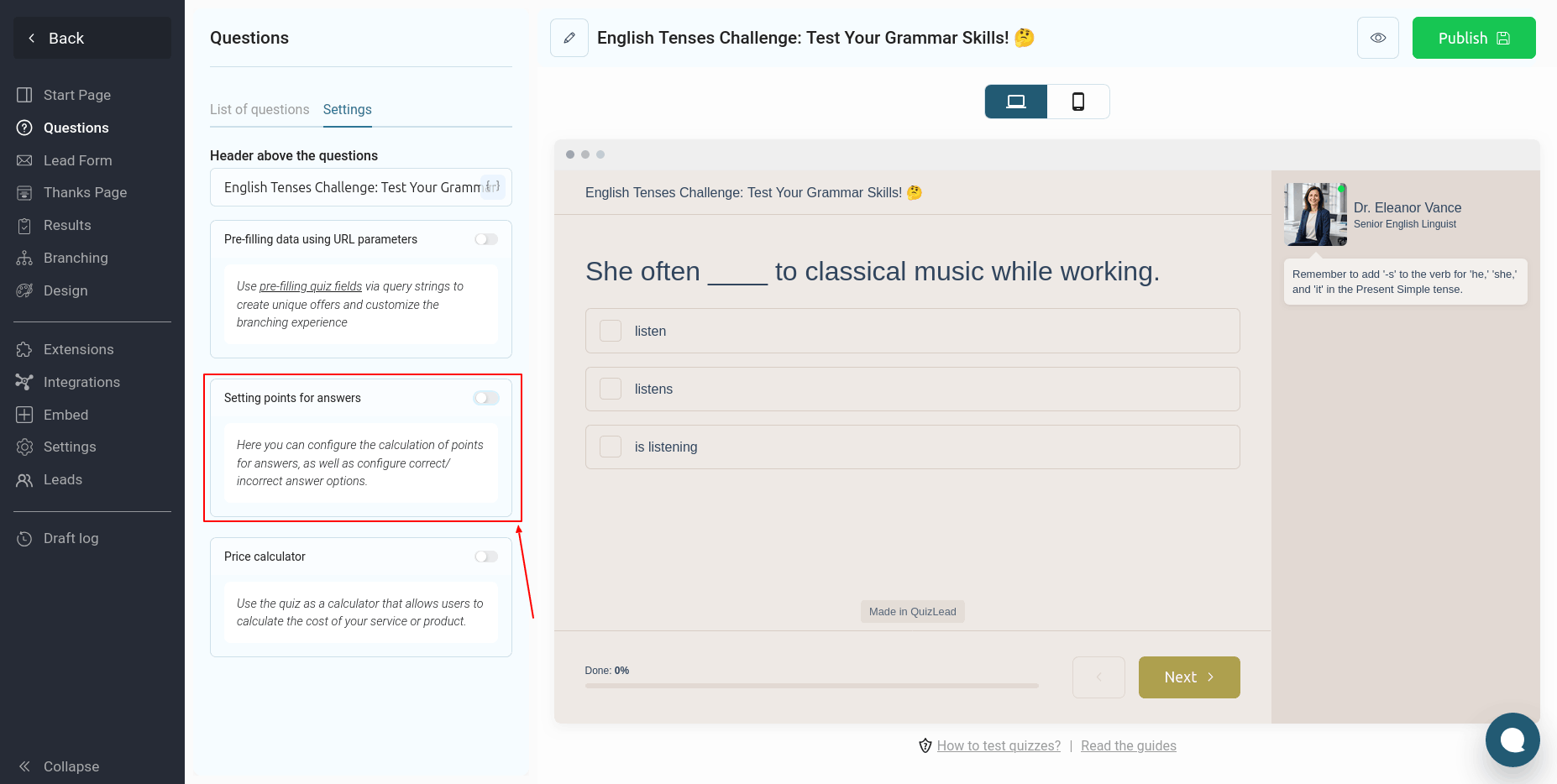
Next, you need to activate the switch in the "Setting points for answers" block. Afterward, the "Configure points" button will appear below:
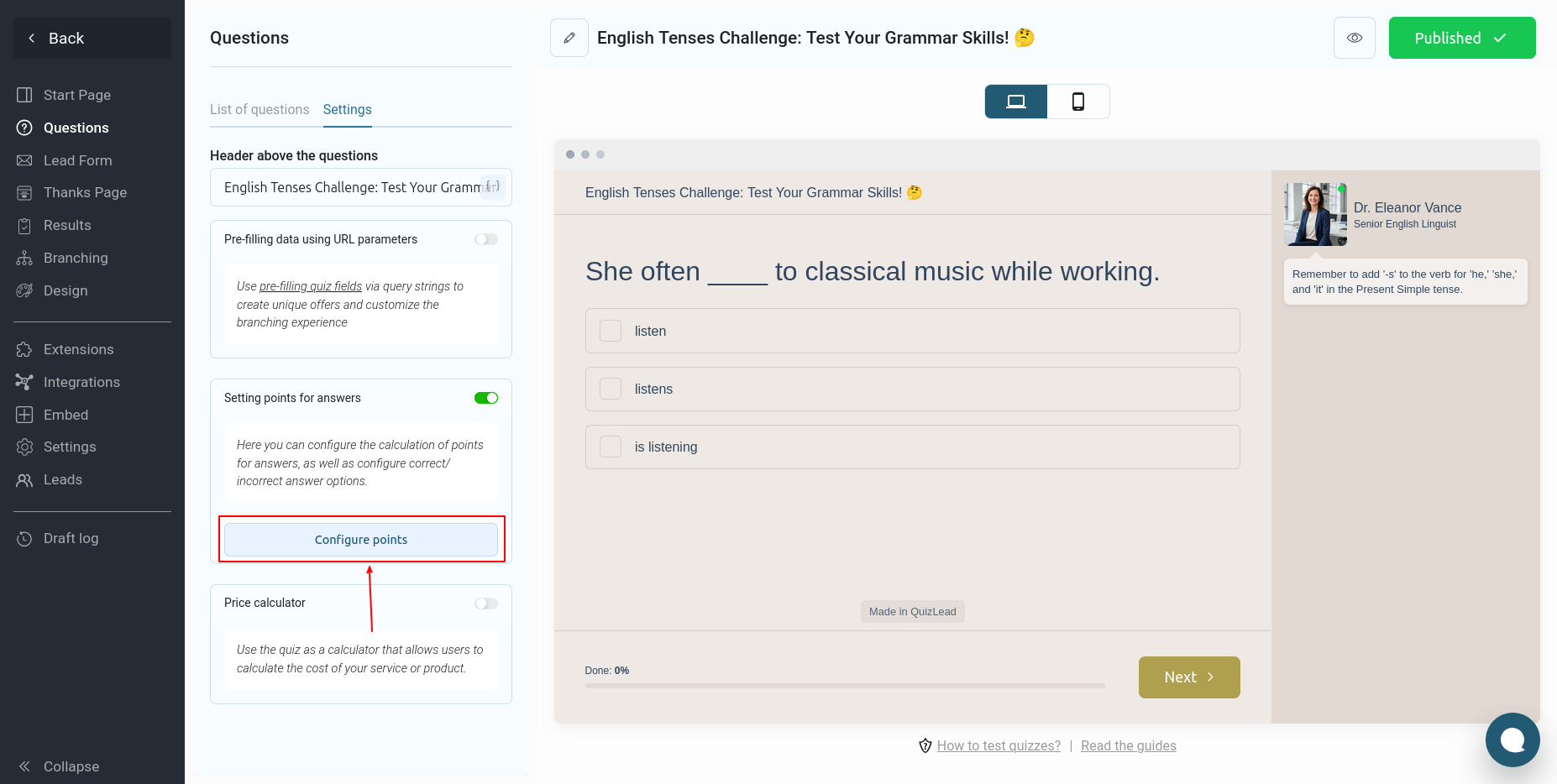
By clicking this button, a window will open with a list of all your questions:
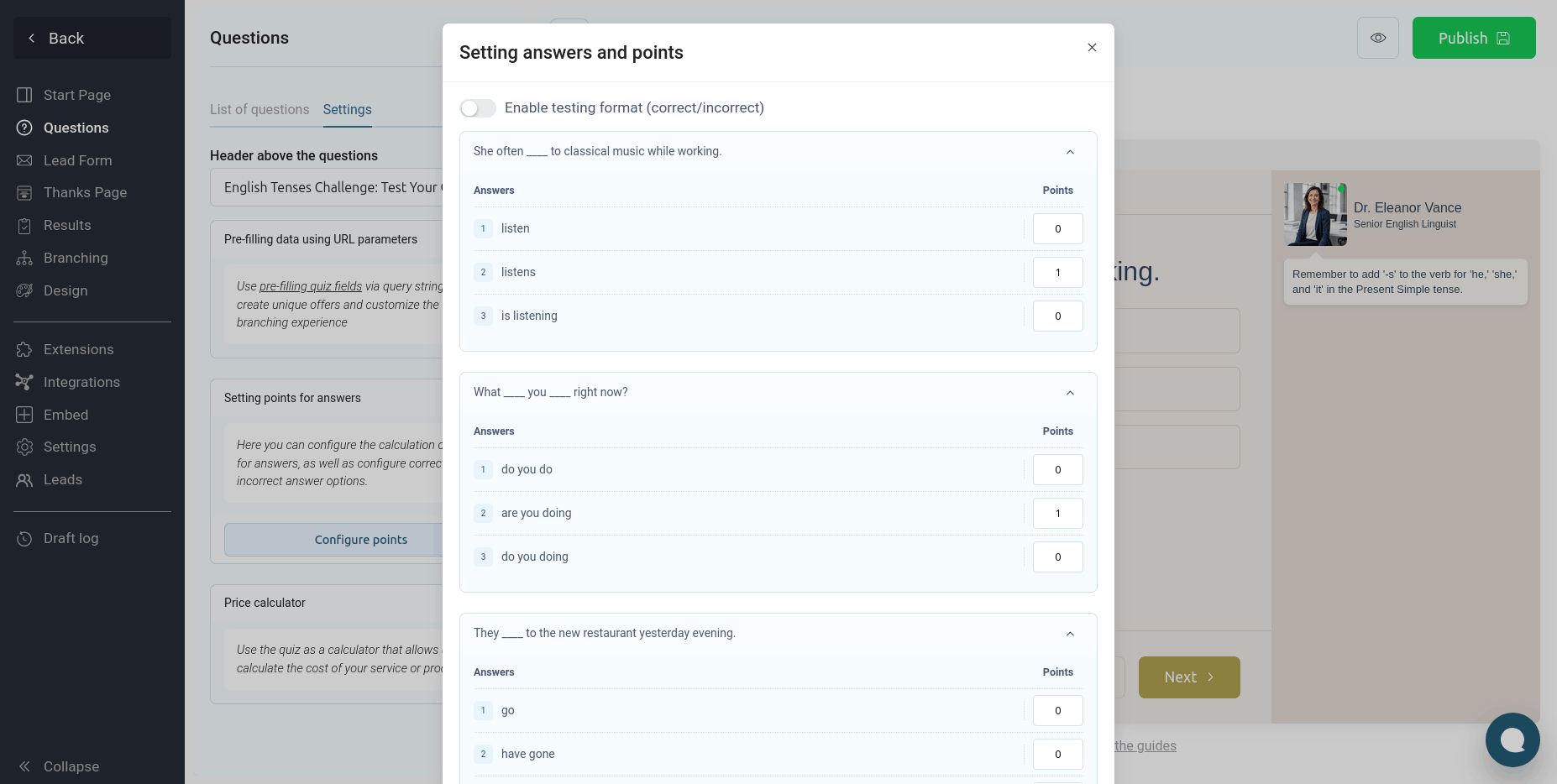
Here you can set the points for correct answers, and the quiz will automatically calculate them. However, if you want to display the correct and incorrect answers to the user, and provide comments for each question, you need to enable the "Enable quiz format" toggle:
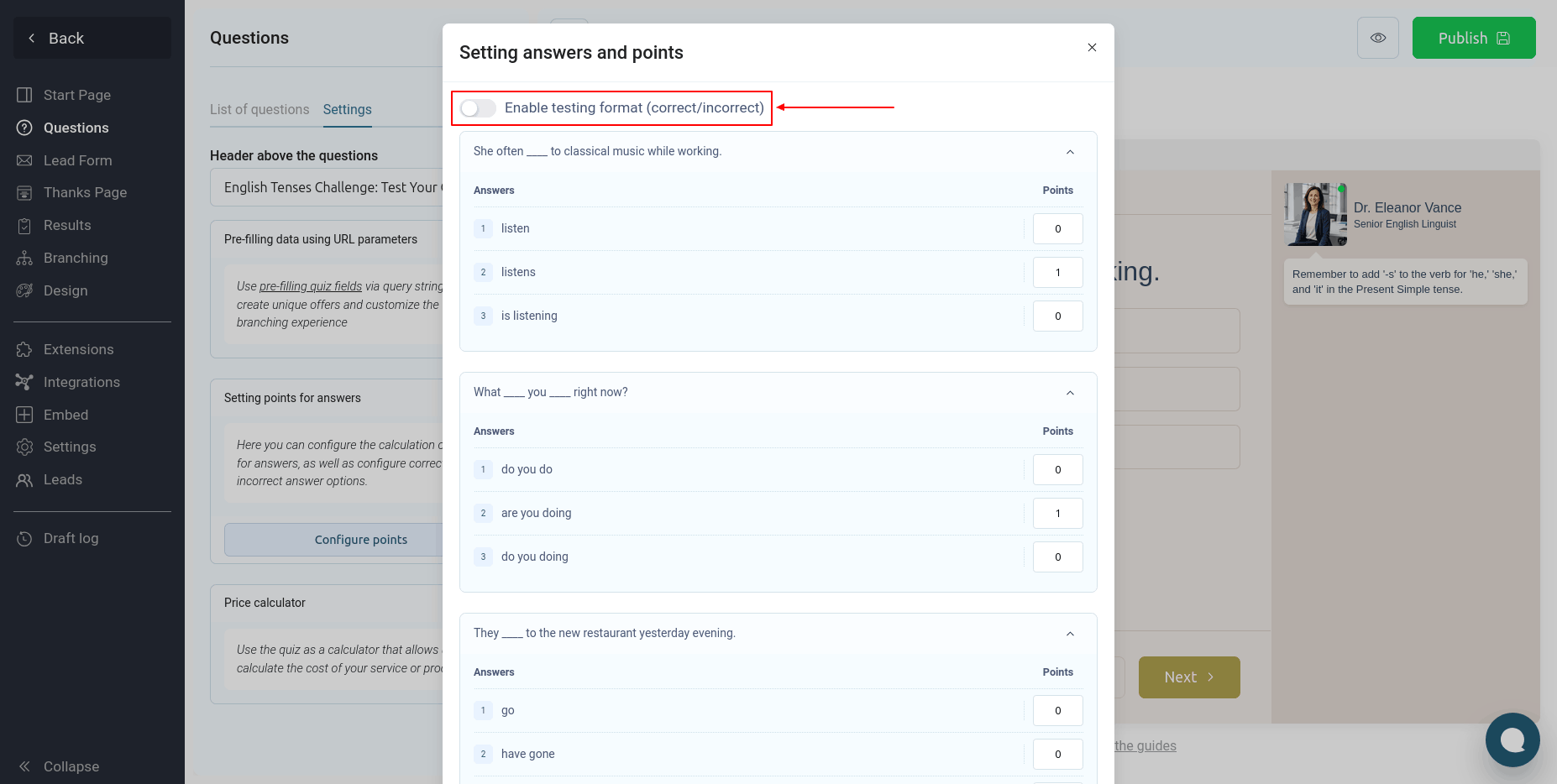
By activating this format, you can indicate the correct answer and add a comment:
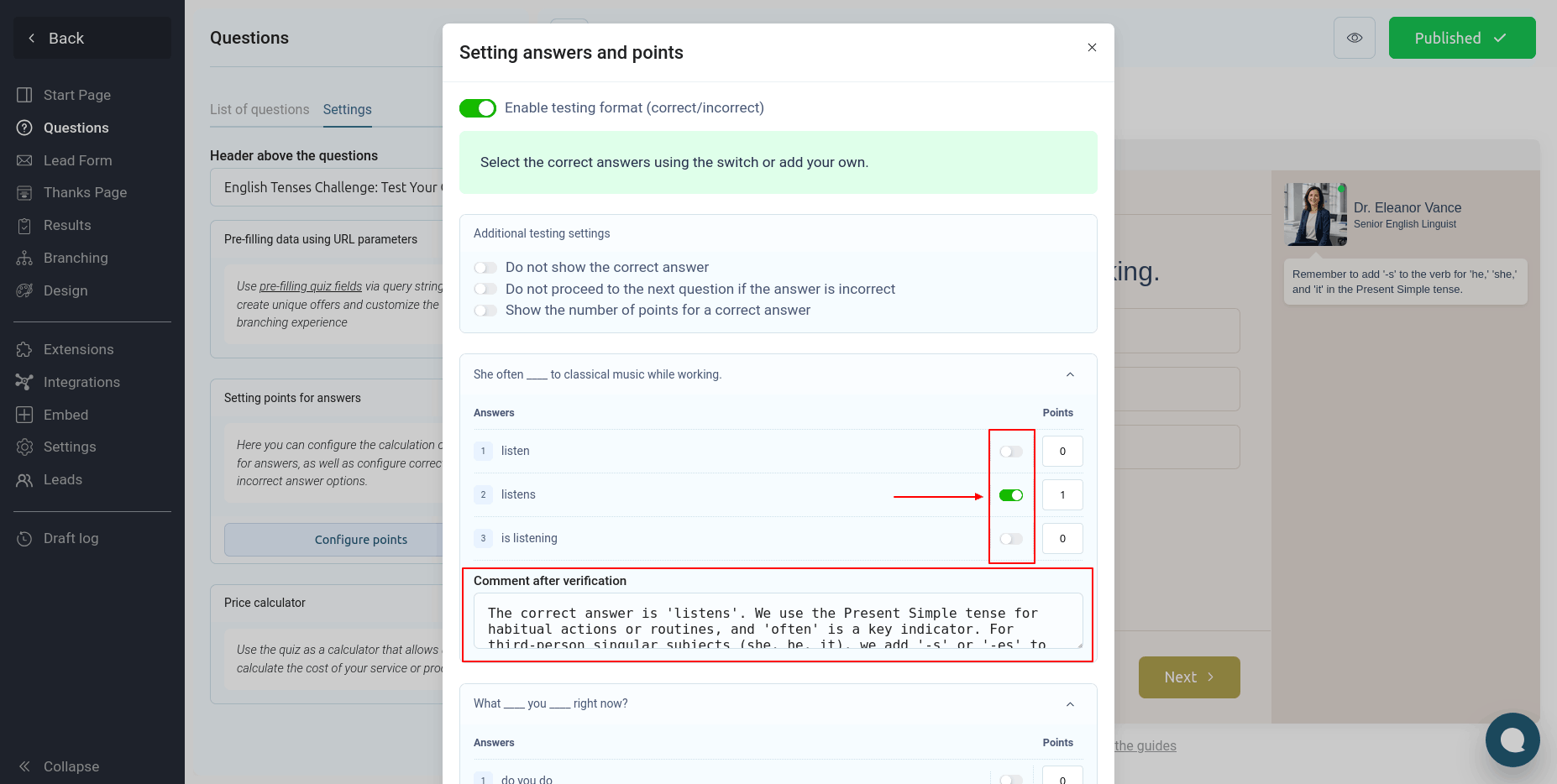
In the quiz itself, after the user answers the question, a check will occur and the quiz will highlight the correct and incorrect answers:
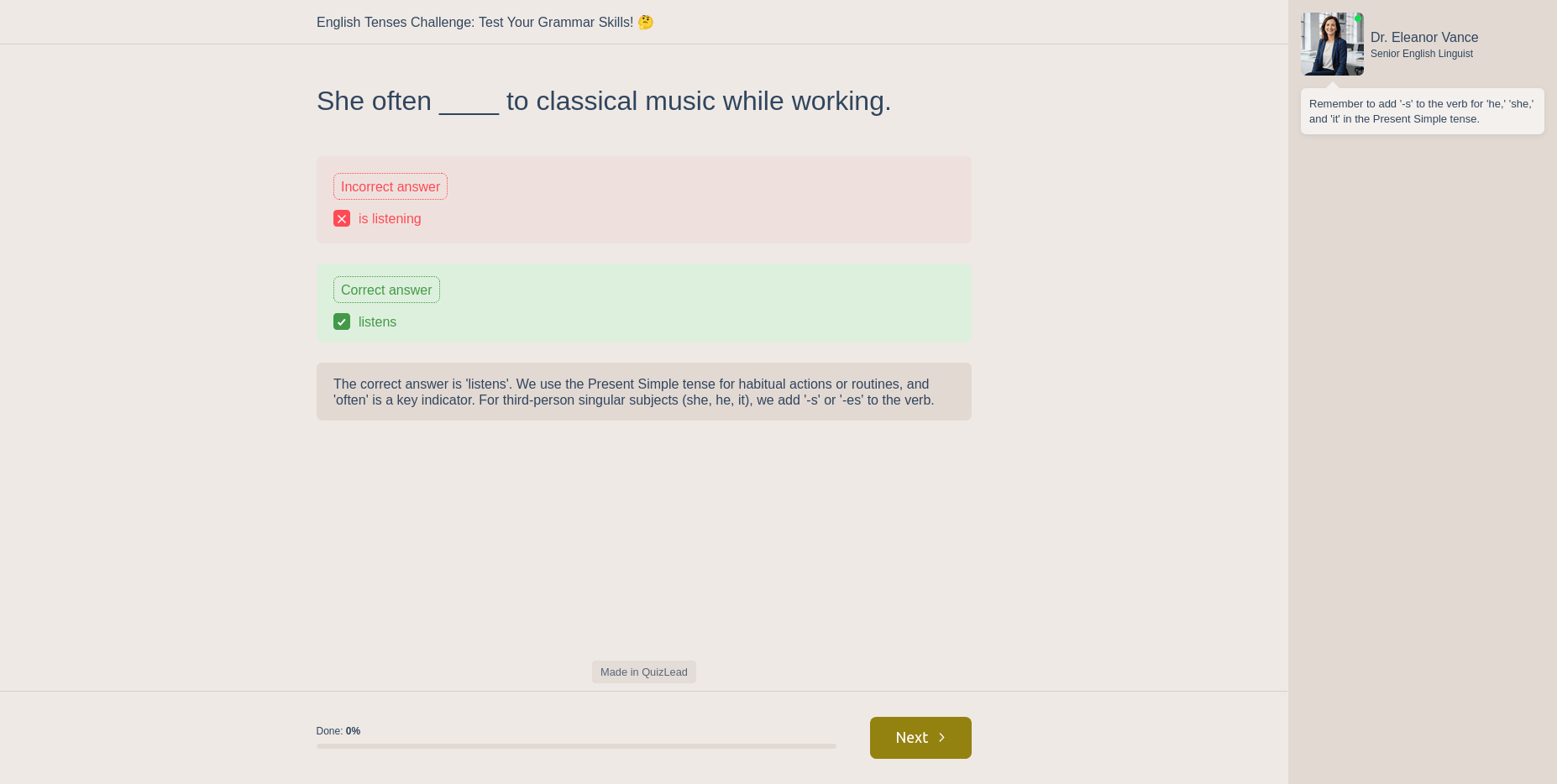
If the testing format is enabled, the user will not be able to return to the previous question.
Additional testing settings
If necessary, you can configure additional settings as shown in this screenshot:
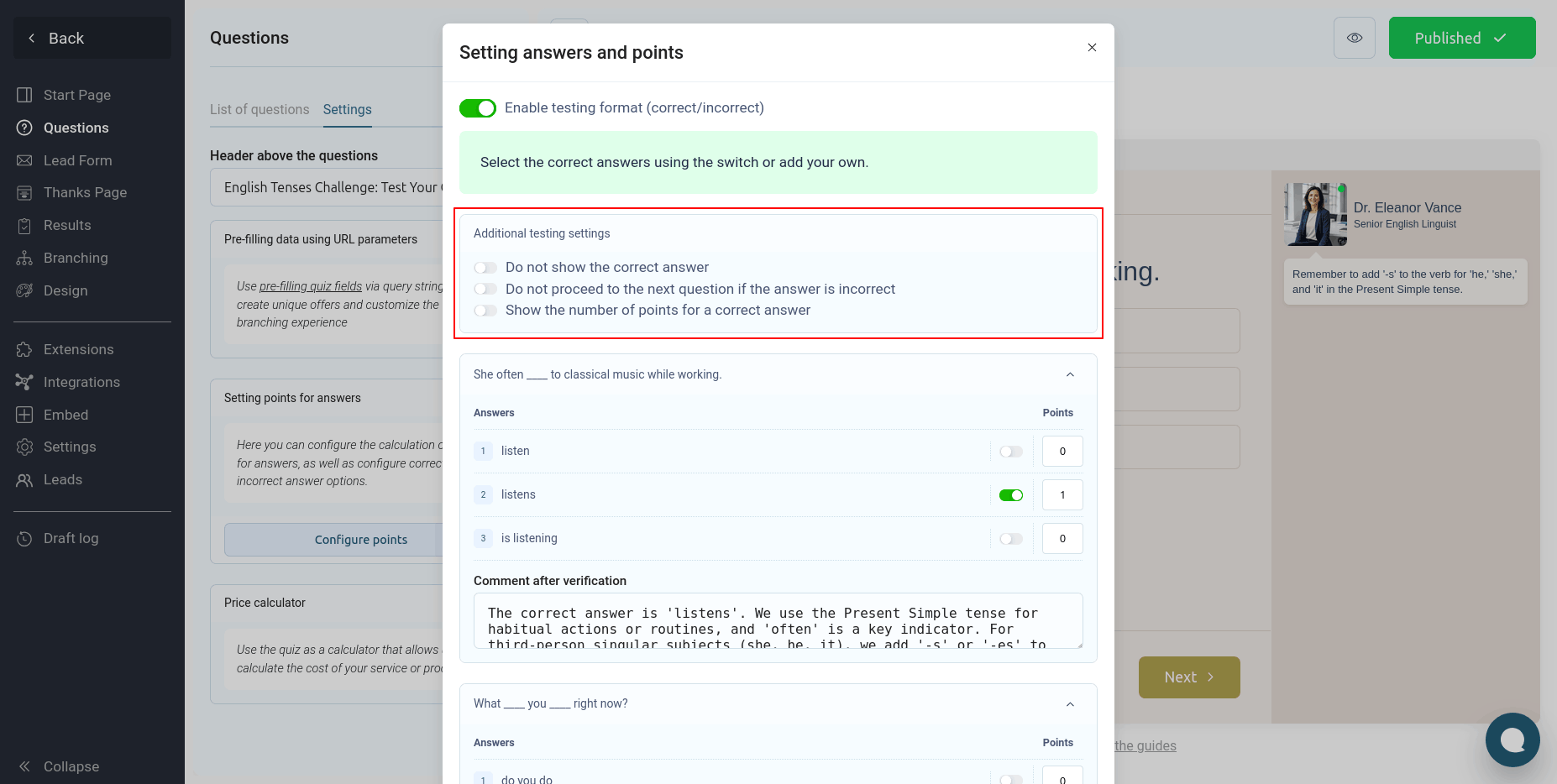
You can:
- Do not show the correct answer
- Do not move on to the next question if the answer was incorrect
- Show the number of points scored for the correct answer
Security settings
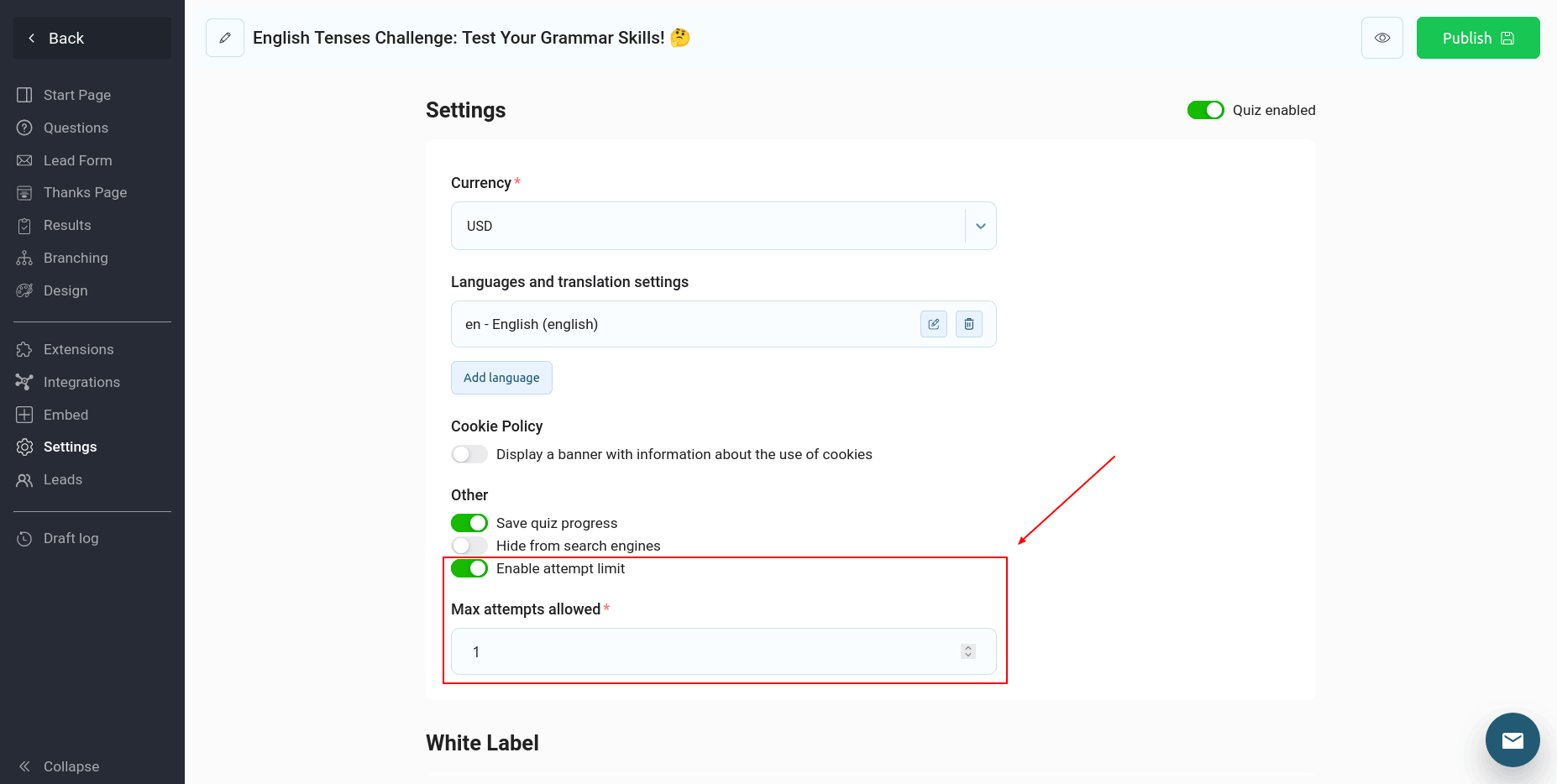
To save your quiz progress and protect it from manipulation, you can enable the corresponding switch in the quiz settings:
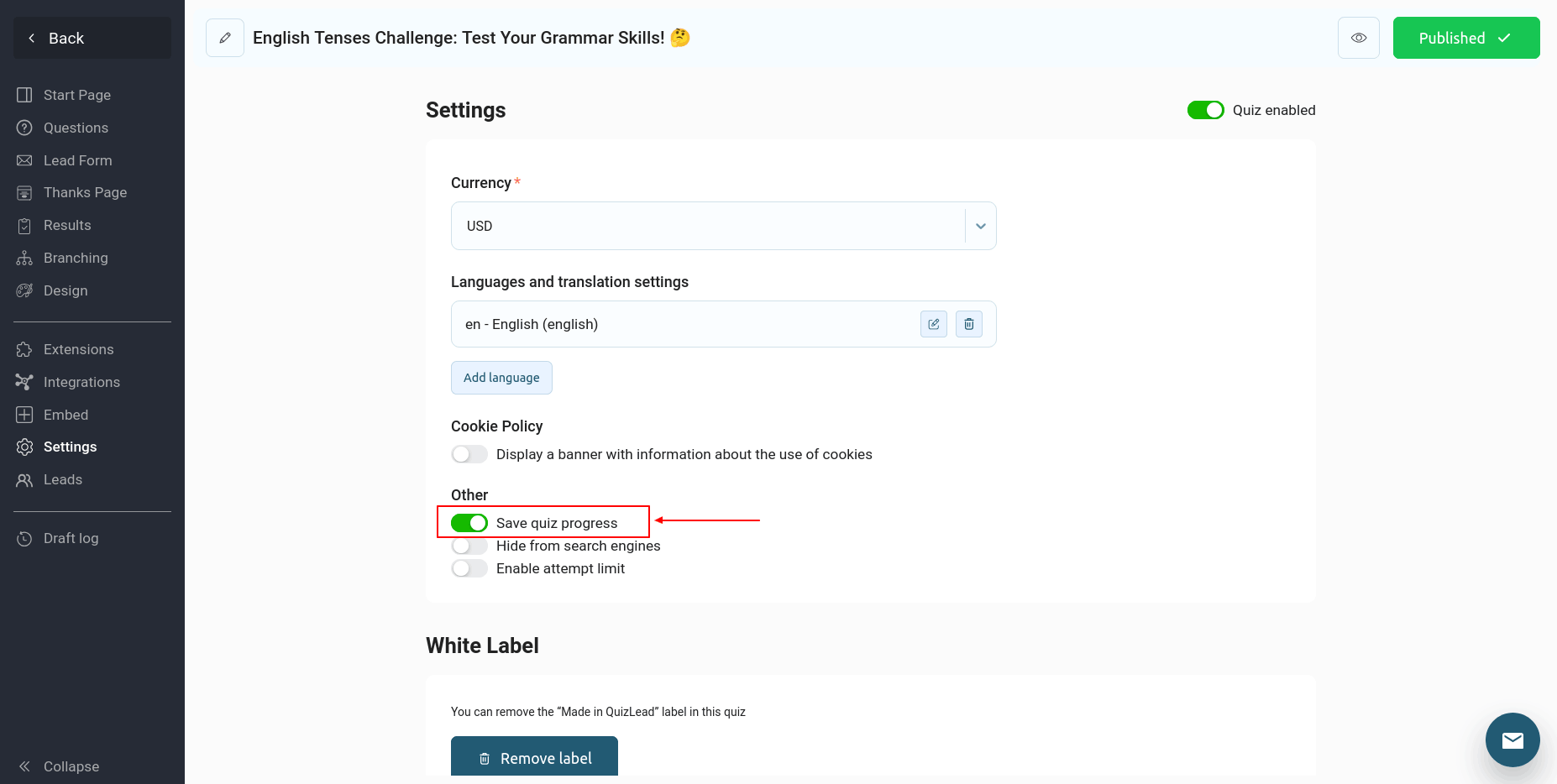
By enabling this switch, all user responses will be saved in their browser and the test progress will not be lost even after reloading the page.
Additionally, you can limit the number of times the test can be taken from one device by turning on the corresponding switch:
Done! Your quiz now works in the True/False format.