
To set up a quiz integration with GetResponse, go to the "Integrations" section of the desired quiz and edit it. Find the "GetResponse" module in the list of integrations and click the "Customize" button:
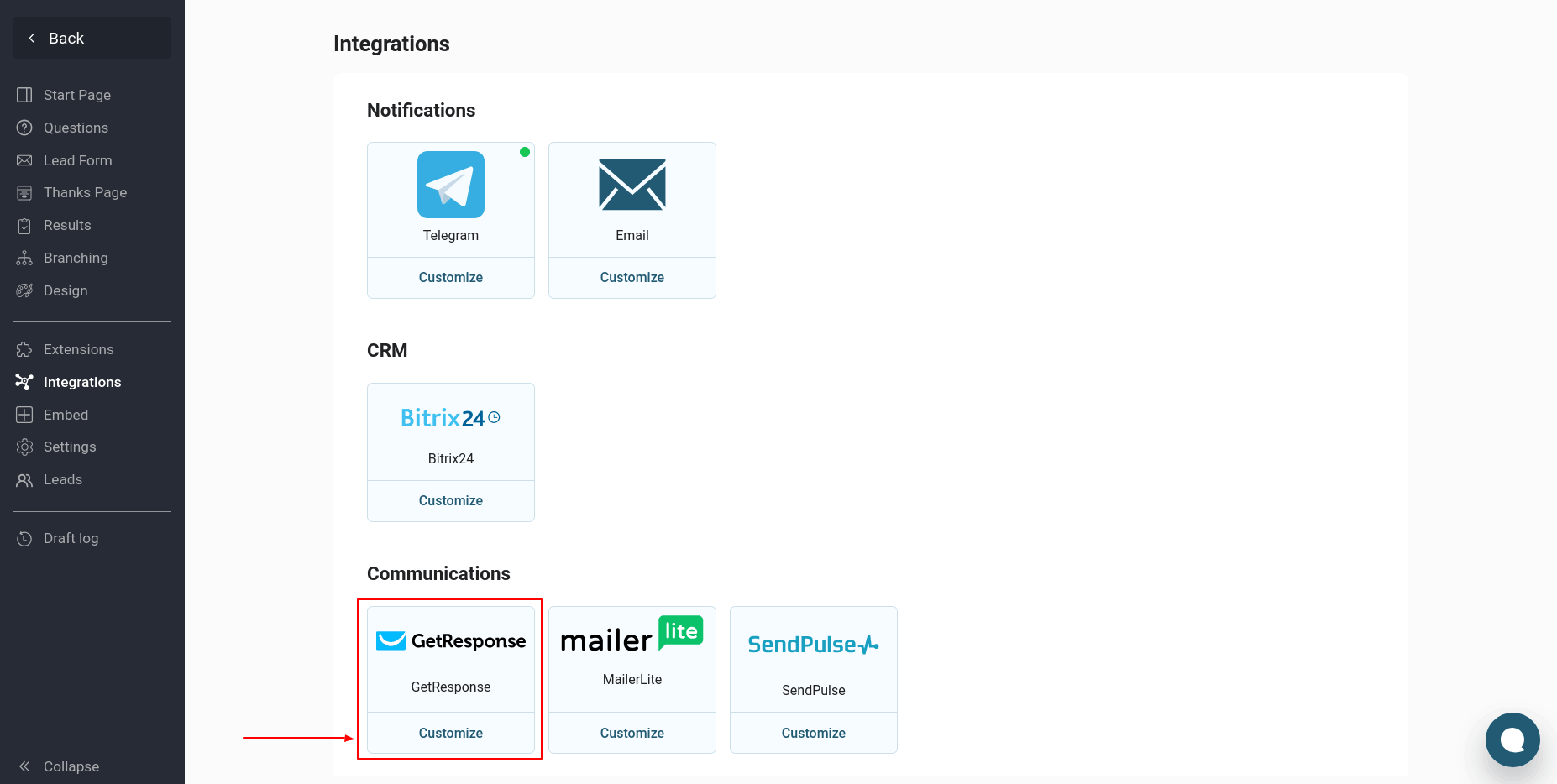
If you are setting up integration with GetResponse for the first time, you will need to create a new connection:
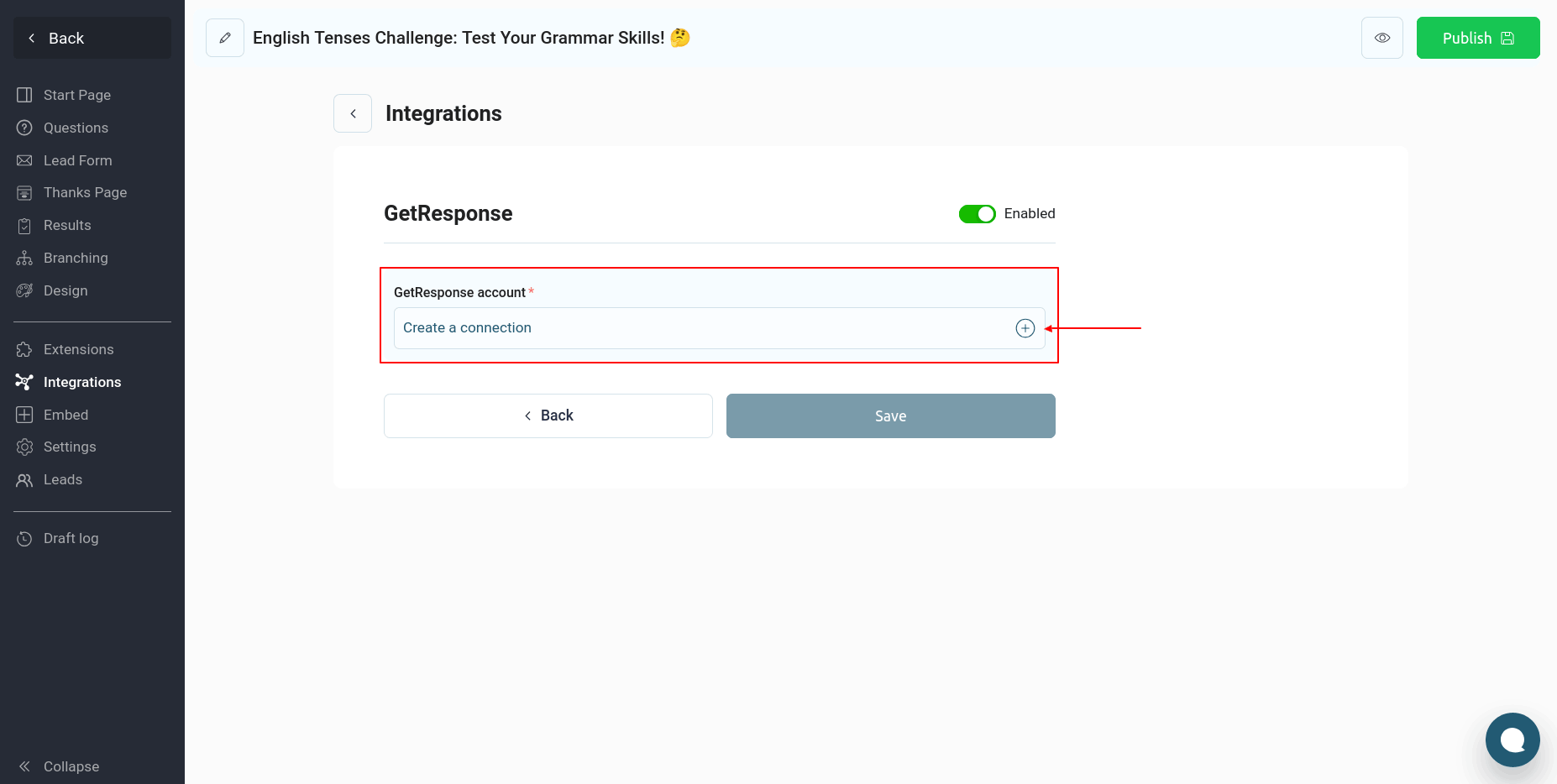
Click the "Create a connection" button:
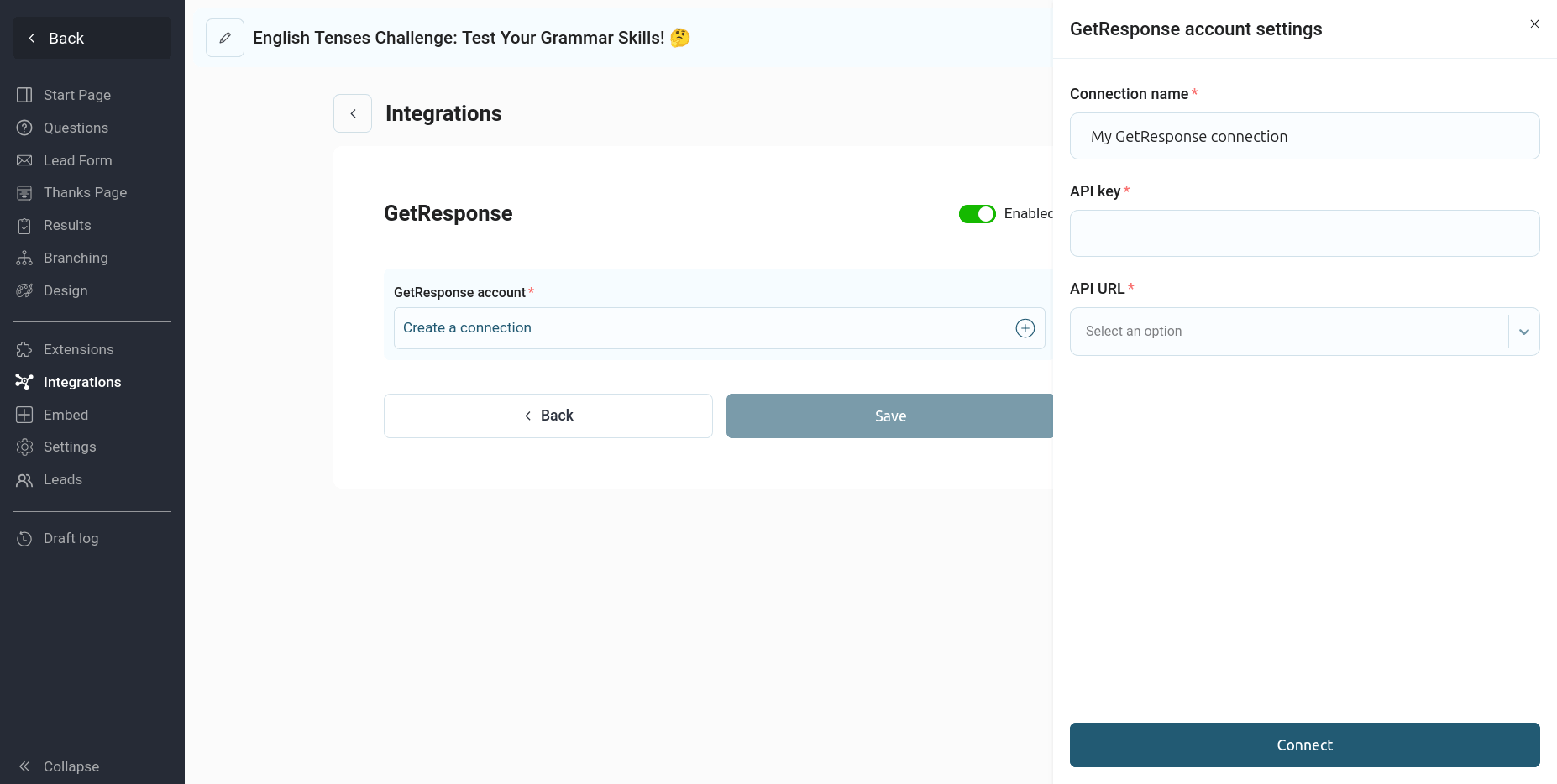
Here you need to enter your API key and API URL. You can find these values in your GetResponse account under "Integrations" -> "API":
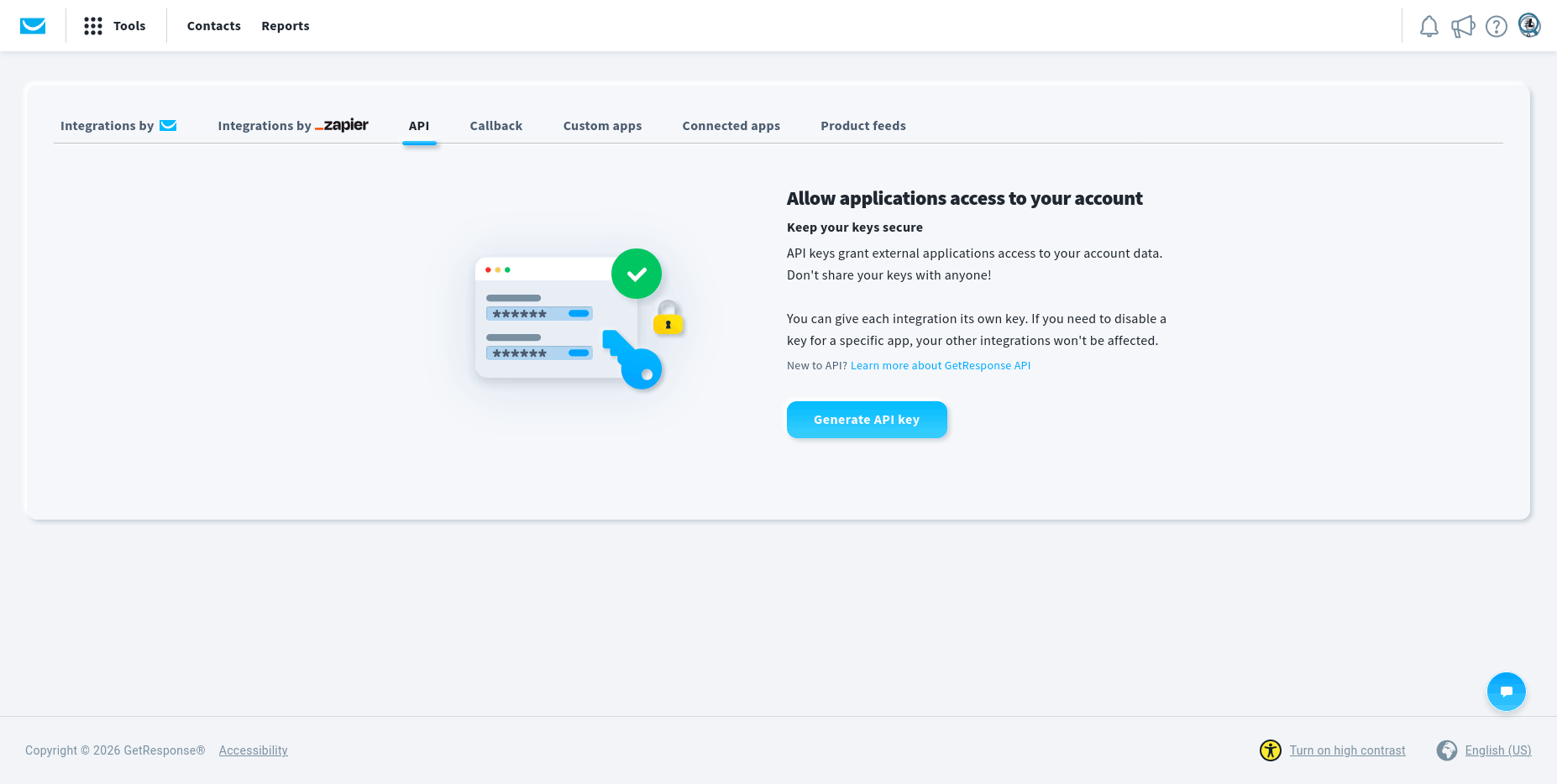
Click the "Generate API Key" button, enter a name, and then click "Generate":
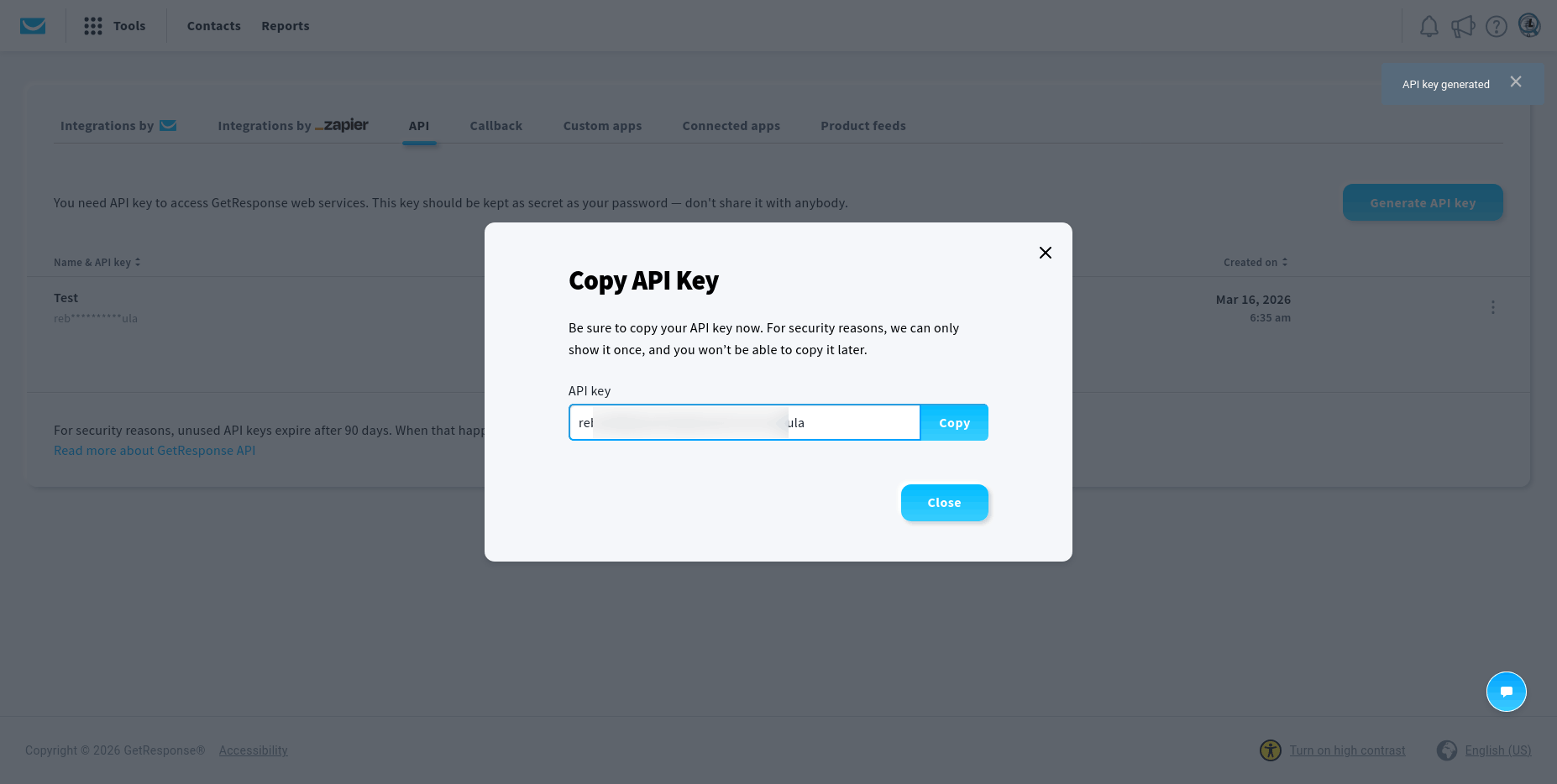
Copy the value of the generated API key and enter it in the GetResponse integration settings and click the "Connect" button:
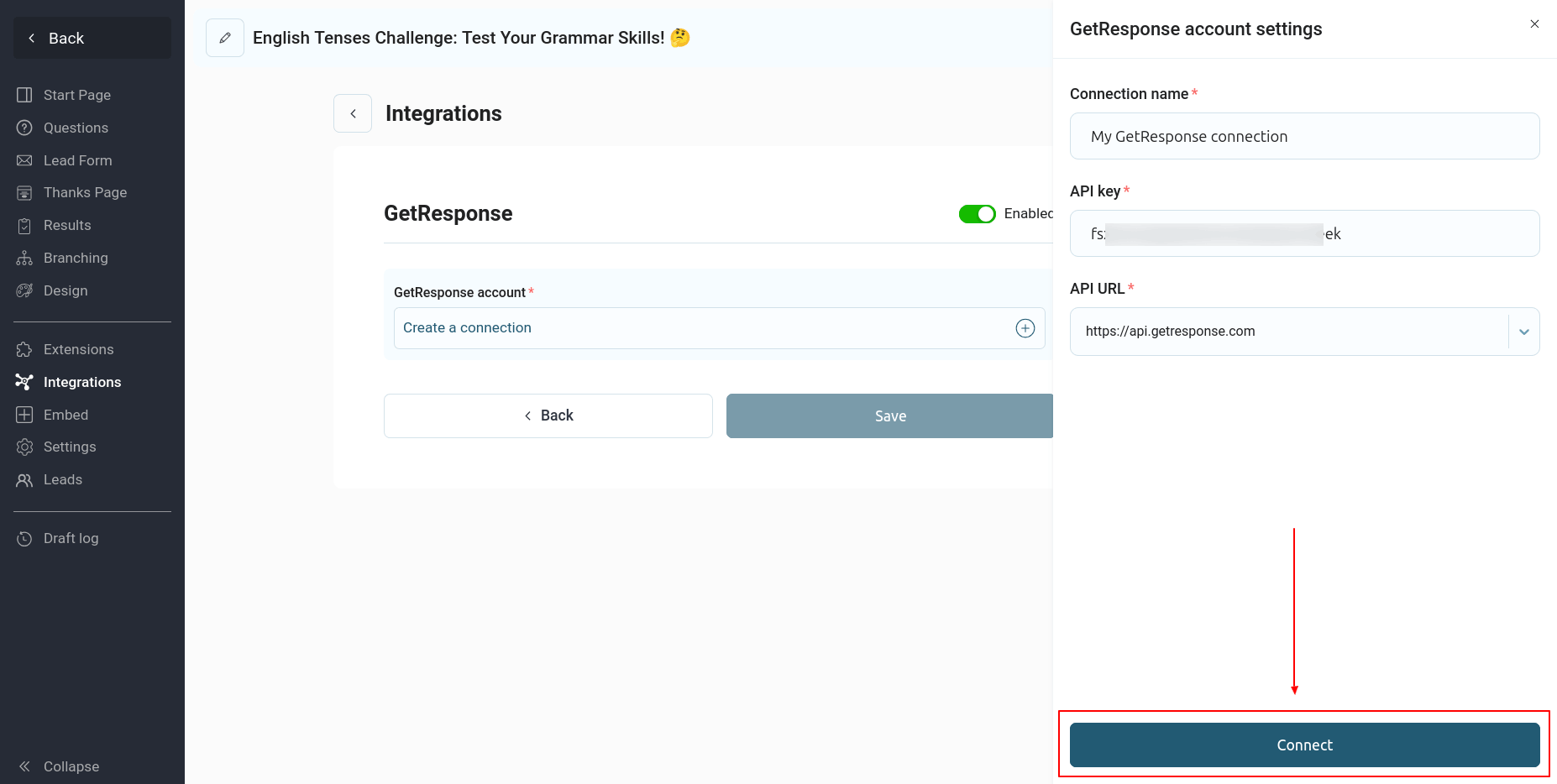
If the data is correct, you will see a page like this:
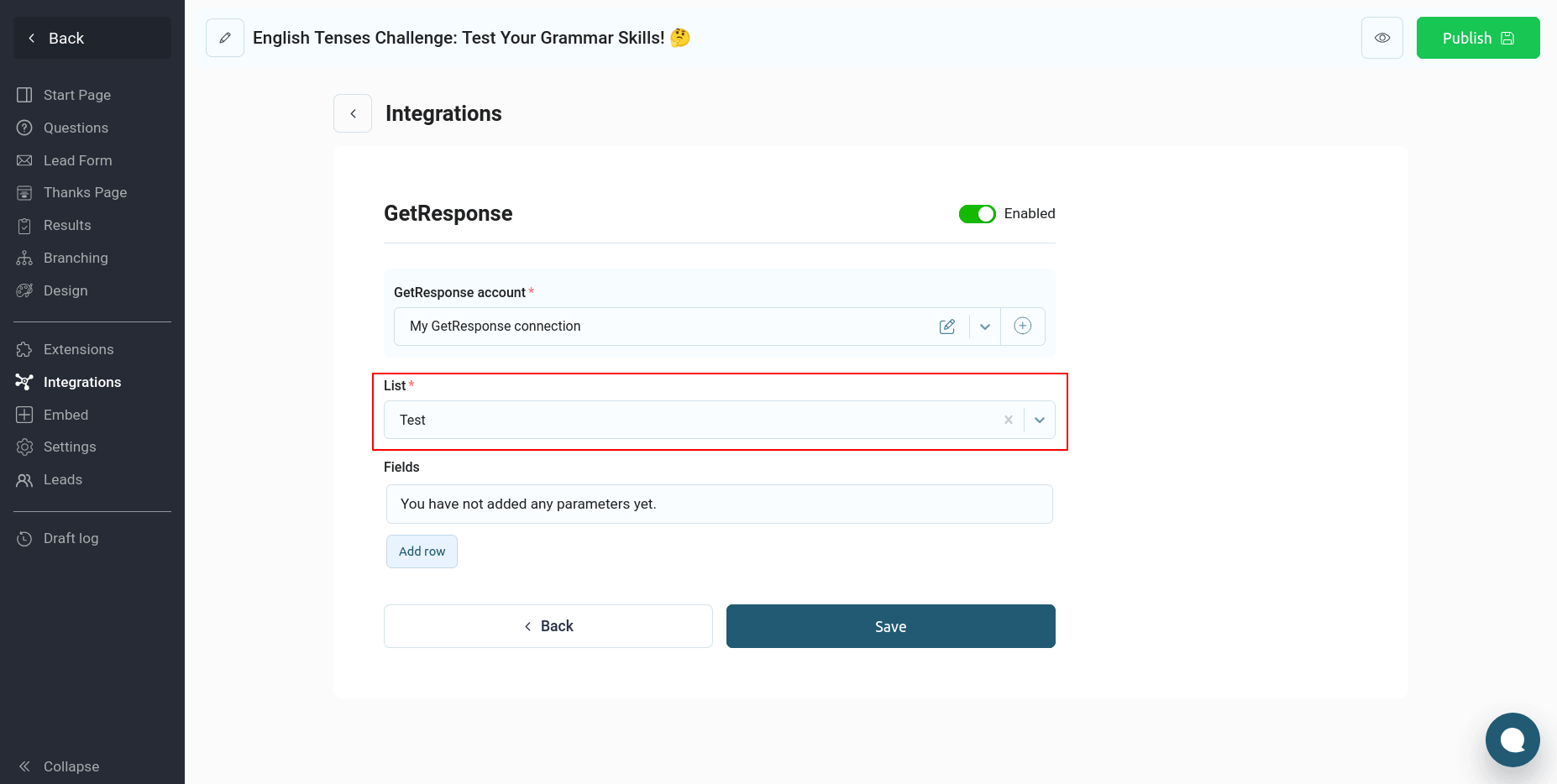
Select the mailing list to which contacts will be added after completing the quiz.
If you have custom fields in your mailing list, you can also configure how this data is transmitted. To do this, click the "Add Row" button:
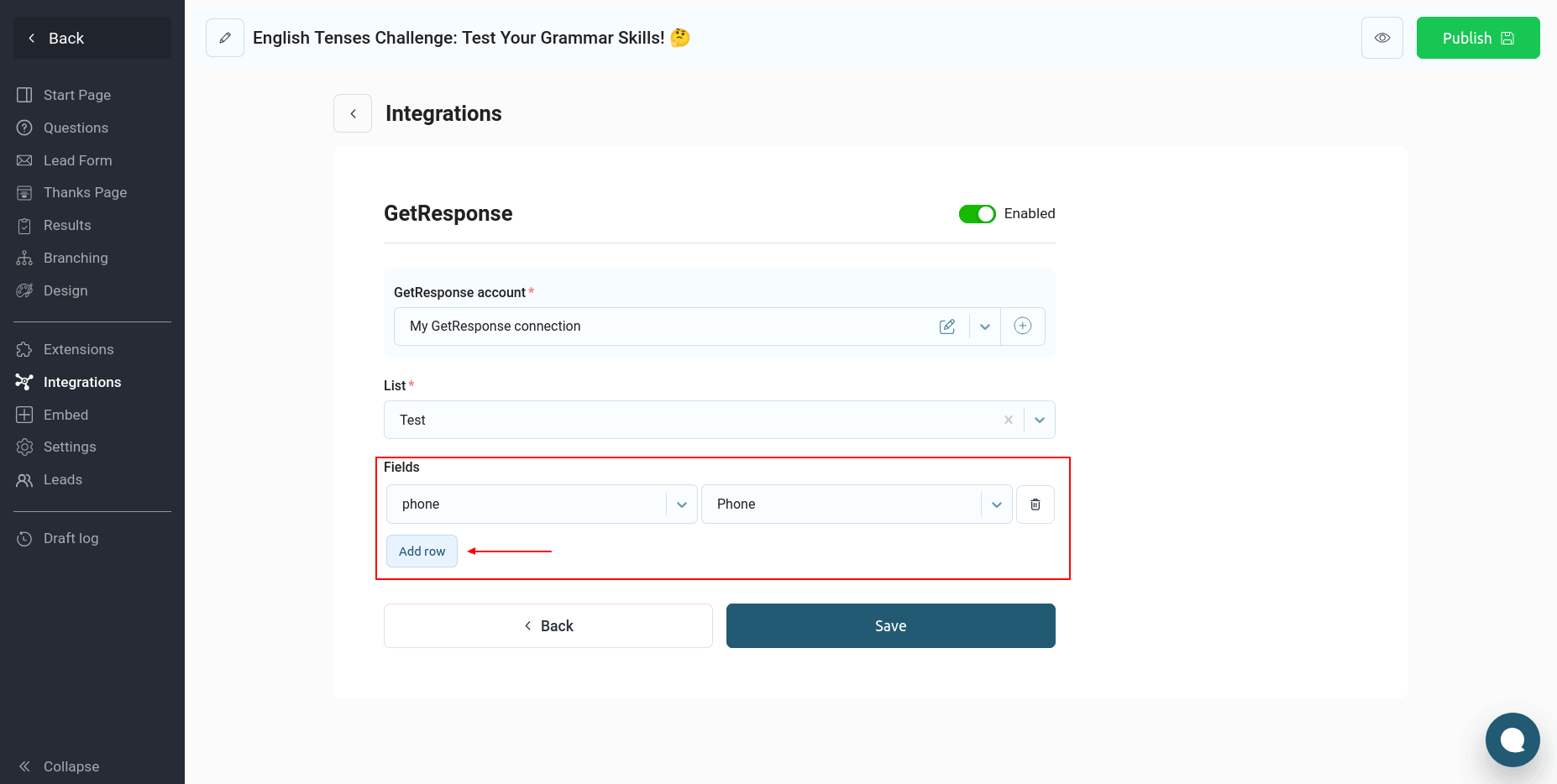
On the left side of the list, you'll see all the available fields from your mailing list, and on the right side, you'll see a list of data from the quiz.
Configure all the required information and click "Save." This completes the quiz integration with GetResponse.
Now, every time a quiz is completed, the data from the quiz contact form will be sent to the specified GetResponse mailing list.