
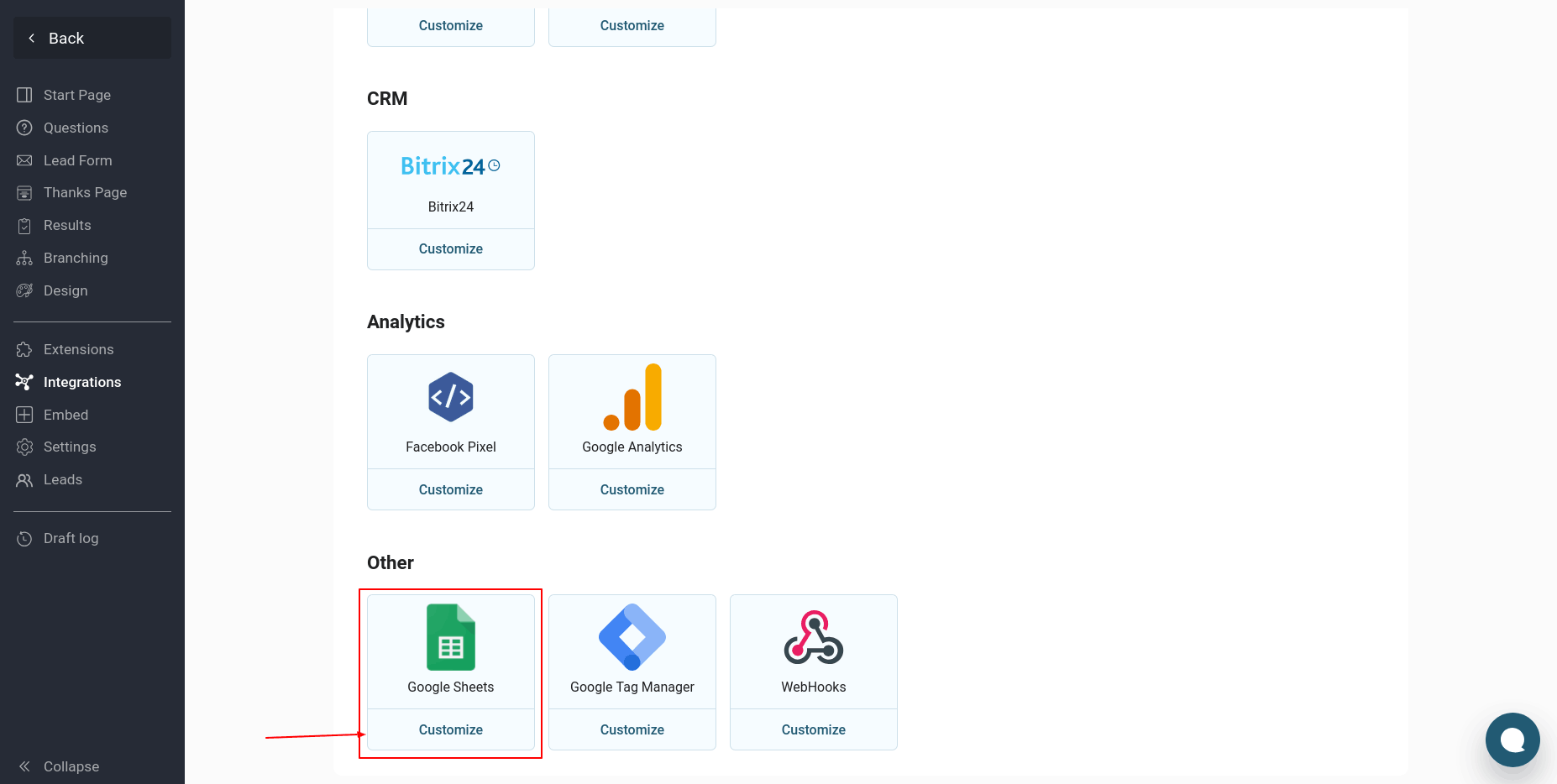
To set up the integration of your quizzes with Google Sheets, go to the "Integrations" section of the desired quiz and edit it. Find the "Google Sheets" module in the list of integrations and click the "Customize" button:
Next, you need to set up a new connection to the Google spreadsheet:
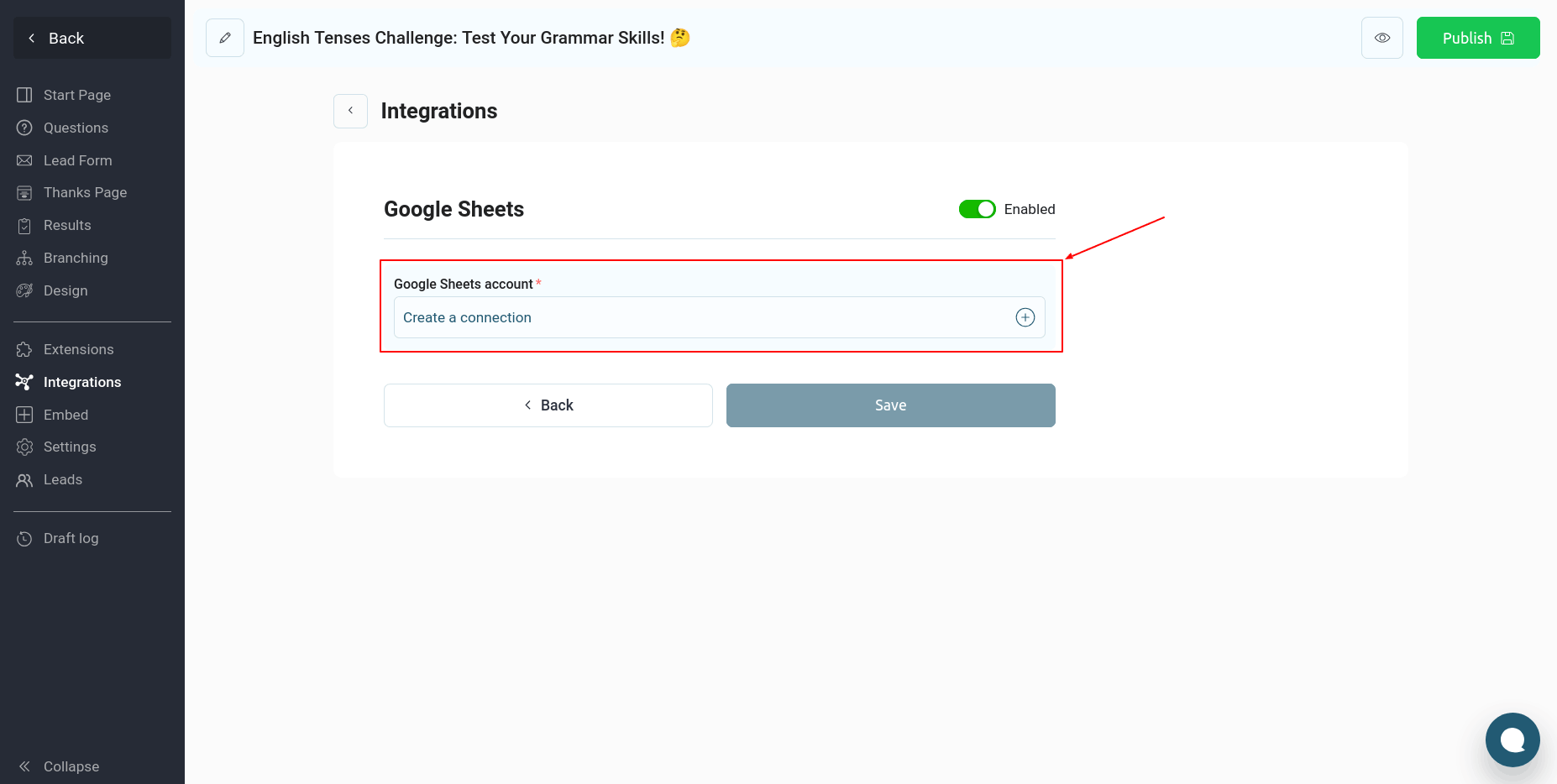
To do this, click on the "Create connection" link, after which the following window will open:
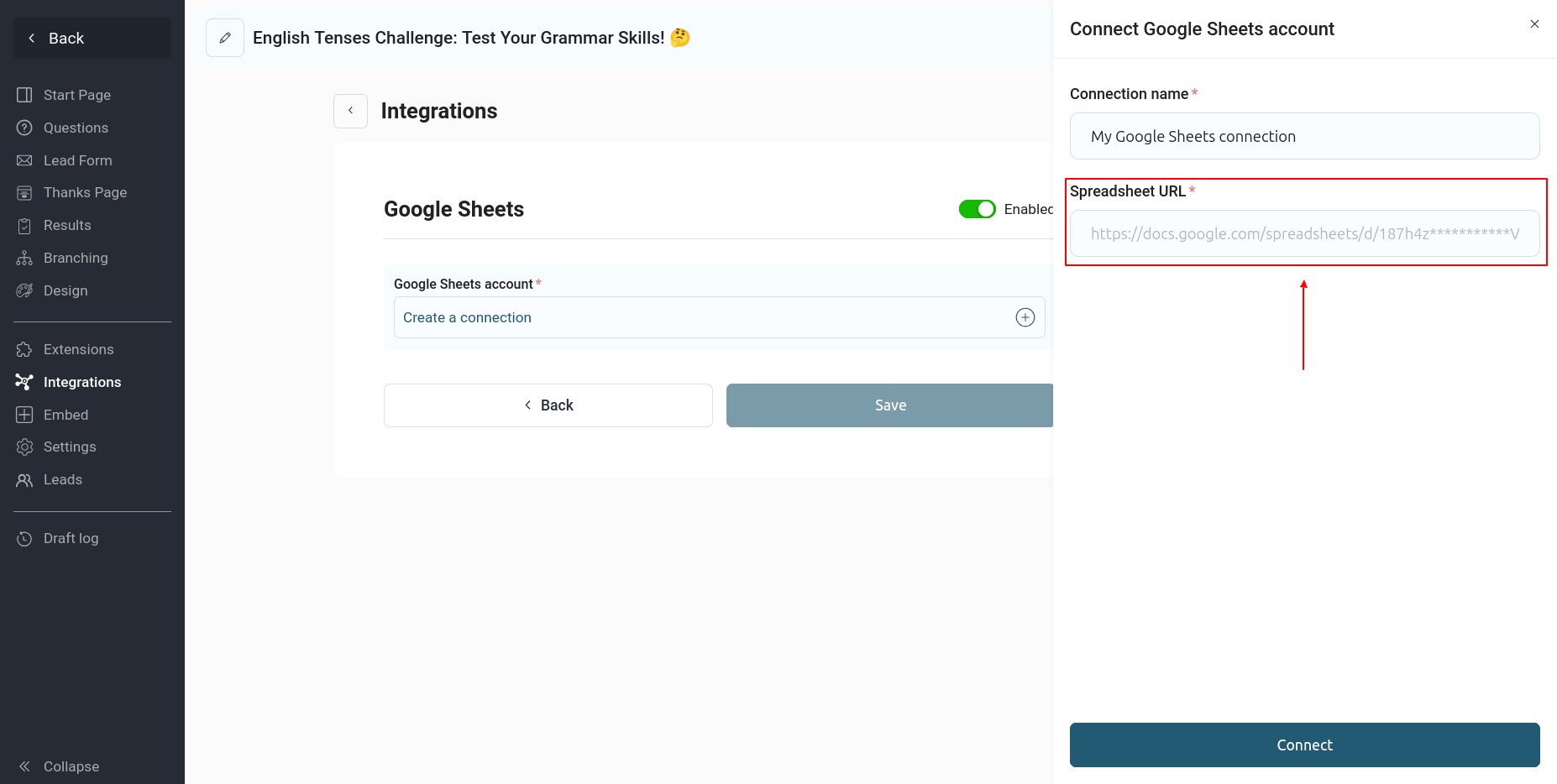
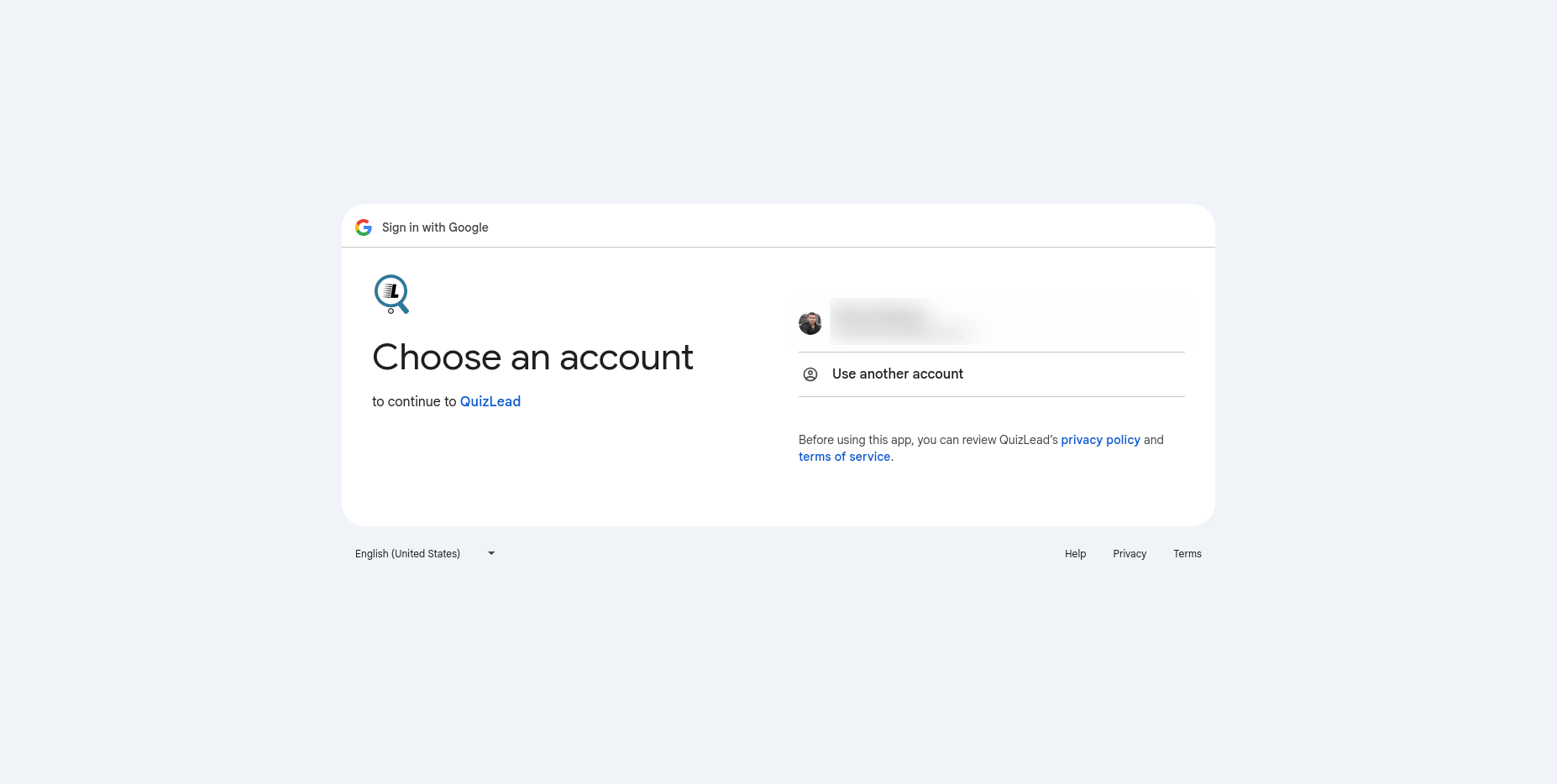
Enter a name for this connection and the link to the desired Google spreadsheet, then click the "Connect" button. You'll be redirected to the Google website, where you'll need to select the account to connect to the spreadsheet:
And grant our application access rights to the table:
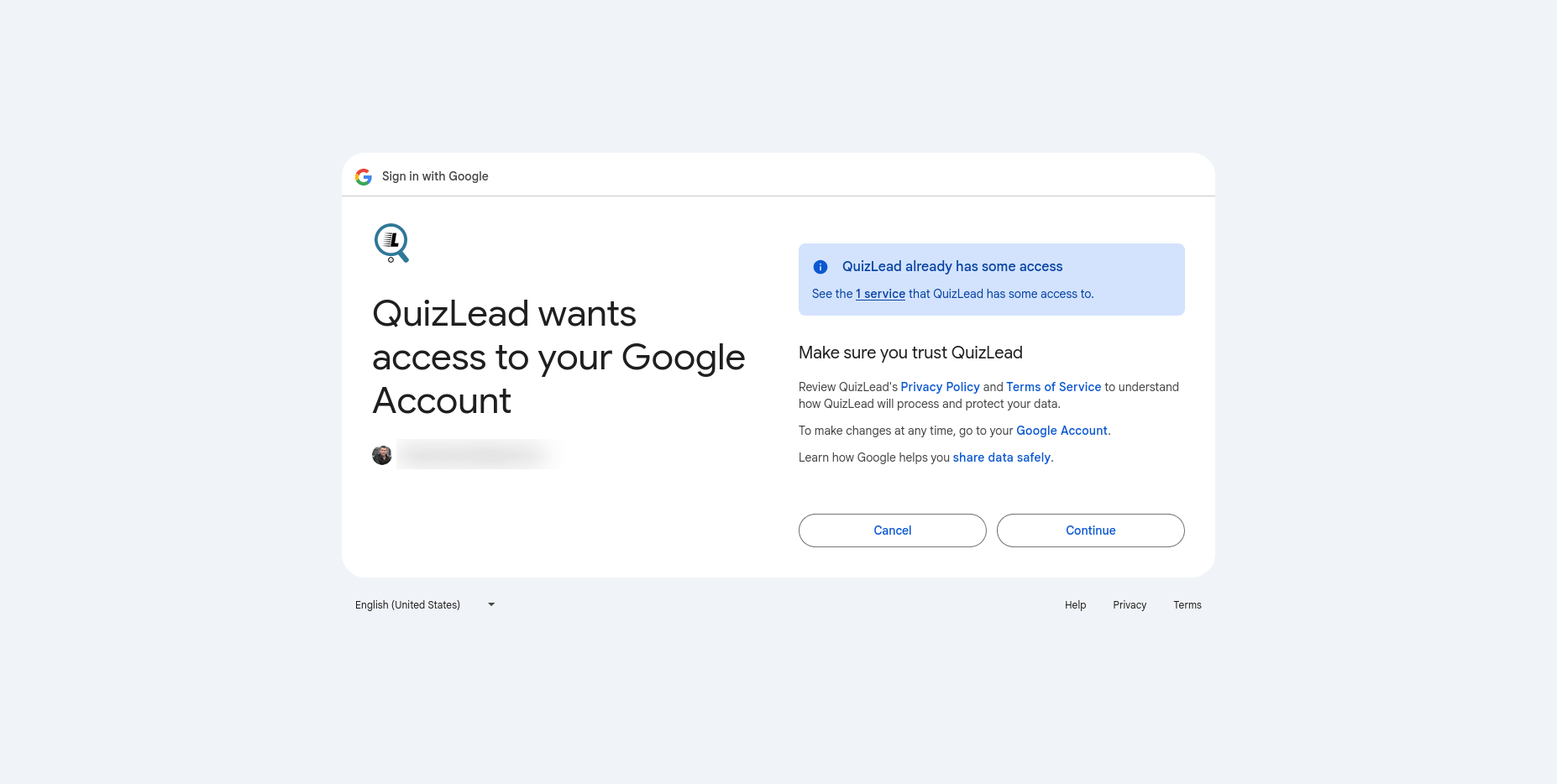
You'll then be returned to the QuizLead website, where a new connection will be created and you can continue setting up the integration.
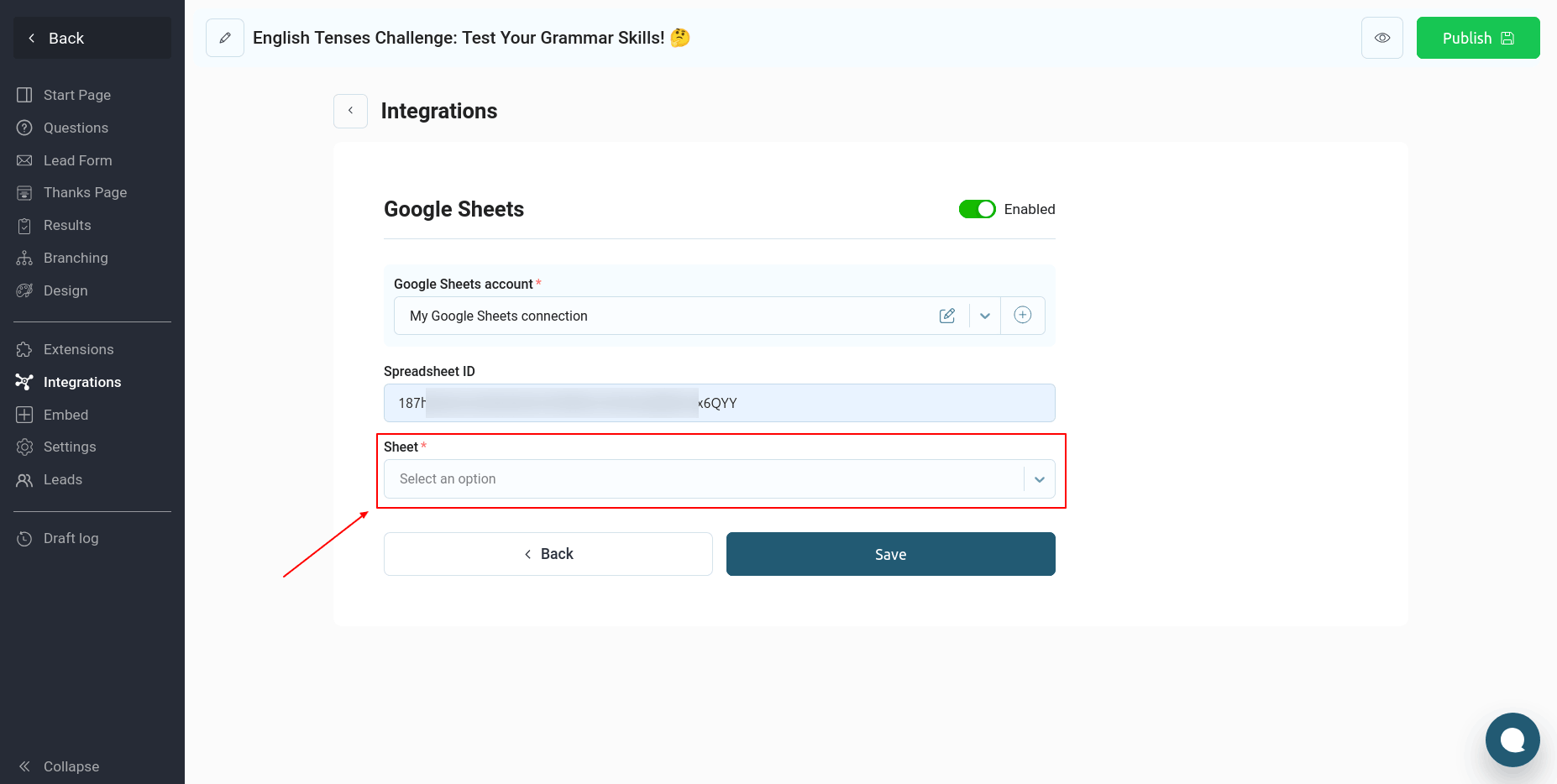
Next, you need to select the table sheet to which the data will be transferred:
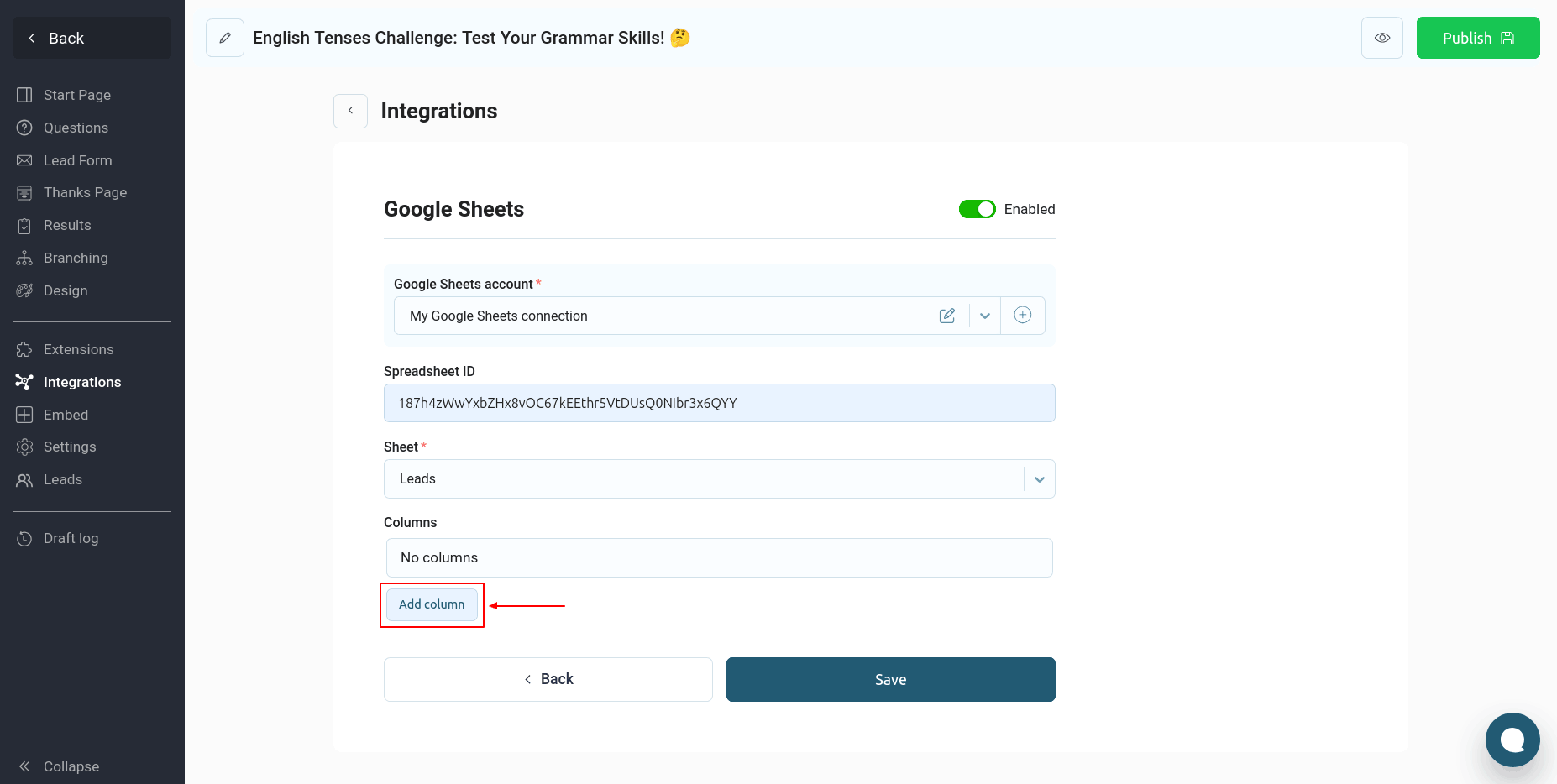
Now you need to configure which table columns to transfer data to. To do this, click the "Add Column" button:
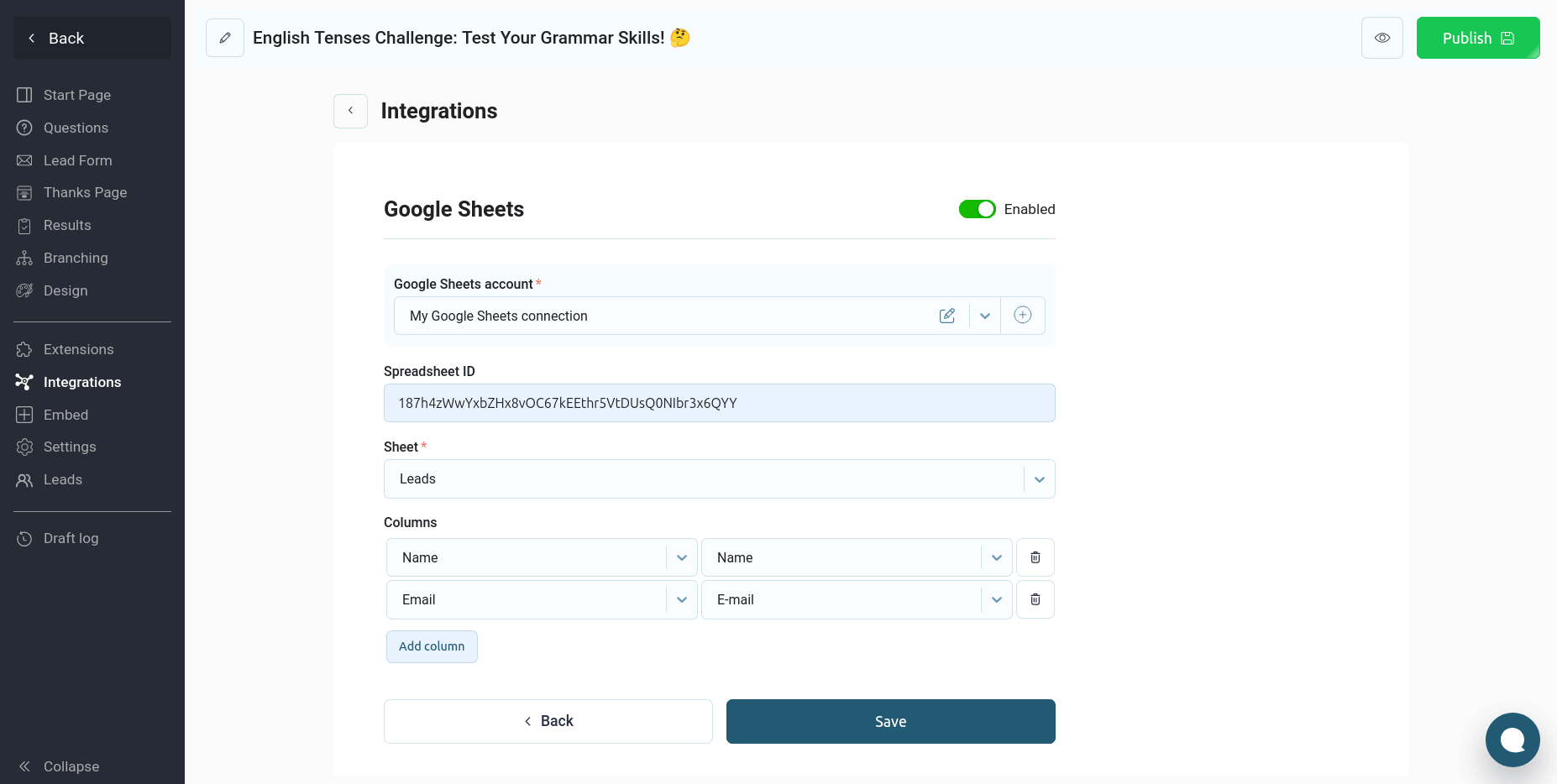
Add all the necessary data that needs to be transferred to the Google Sheet:
Next, you need to set up a new connection to the Google spreadsheet:
To do this, click on the "Create connection" link, after which the following window will open:
Enter a name for this connection and the link to the desired Google spreadsheet, then click the "Connect" button. You'll be redirected to the Google website, where you'll need to select the account to connect to the spreadsheet:
And grant our application access rights to the table:
You'll then be returned to the QuizLead website, where a new connection will be created and you can continue setting up the integration.
Next, you need to select the table sheet to which the data will be transferred:
Now you need to configure which table columns to transfer data to. To do this, click the "Add Column" button:
Add all the necessary data that needs to be transferred to the Google Sheet:
Click the "Save" button. This completes the QuizLead and Google Sheets integration.